Watermarks
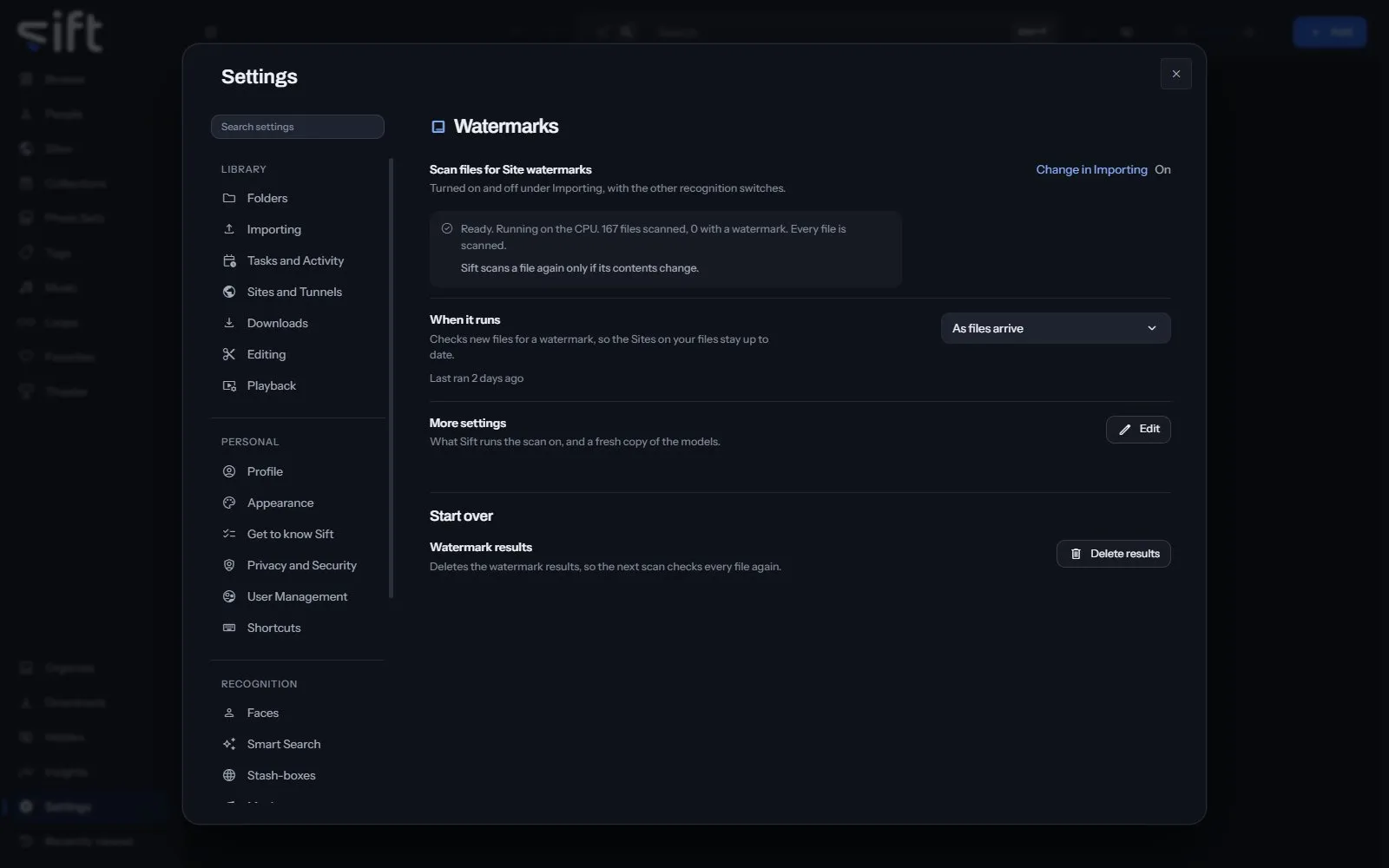
Watermarks is where you set up the scan that finds a Site’s watermark on your files. To open it, go to Settings > Watermarks.
Come here to see how many files are scanned, or to choose what the scan runs on. The scan uses the PP-OCRv4 models, on your computer.
On this pane
Section titled “On this pane”The first rows have no heading: the switch, how many files are scanned, when it runs, and More settings. The switch is turned on and off in Settings > Tasks and Activity > Import tasks > Identify settings. Then the pane draws one group:
- Start over: delete the watermark results.
Rows the pane draws by hand
Section titled “Rows the pane draws by hand”- More settings: Edit opens what Sift runs the scan on, and a fresh copy of the models. A download that can’t connect shows why and what to check. It uses the proxy set in Windows, or in
HTTPS_PROXY. A proxy set by an automatic configuration script isn’t read. - Watermark results: Delete results deletes the results, so the next scan checks every file again.
Every setting
Section titled “Every setting”Scan files for Site watermarks
Section titled “Scan files for Site watermarks”Finds a Site’s watermark printed on a file and adds that Site to the file. A watermark shows where a copy came from, never who is in it.
Sift ships no watermark models. When you choose Download the models, Sift downloads the PP-OCRv4 mobile pair, published by Baidu as part of PaddleOCR, from Hugging Face. The download is about 12 MB. The models recognize the Latin alphabet only, so a watermark in another script isn’t found.
- Path: Settings > Watermarks > Scan files for Site watermarks
- Default: Off
- Who sets it: an admin, for everyone on this Sift
Run watermark scans on
Section titled “Run watermark scans on”A GPU makes a scan about a fifth faster at most, because most of the time goes to opening files.
Sift ships the CPU-only build of its model runtime, so the GPU can’t be used until the GPU’s own runtime is added. Sift can download it under GPU in Settings > Performance. It’s about 1.3 GB, downloaded once and stored next to your libraries, so an update doesn’t remove it and a new library needs nothing. It needs an NVIDIA GPU and a current driver, and nothing else installed by hand.
- Path: Settings > Watermarks > Run watermark scans on
- Default: CPU
- Choices: CPU, GPU
- Who sets it: an admin, for everyone on this Sift