People
People holds a card for each person in your files, and a page with everything Sift has filed under them. To open it, click People in the sidebar.
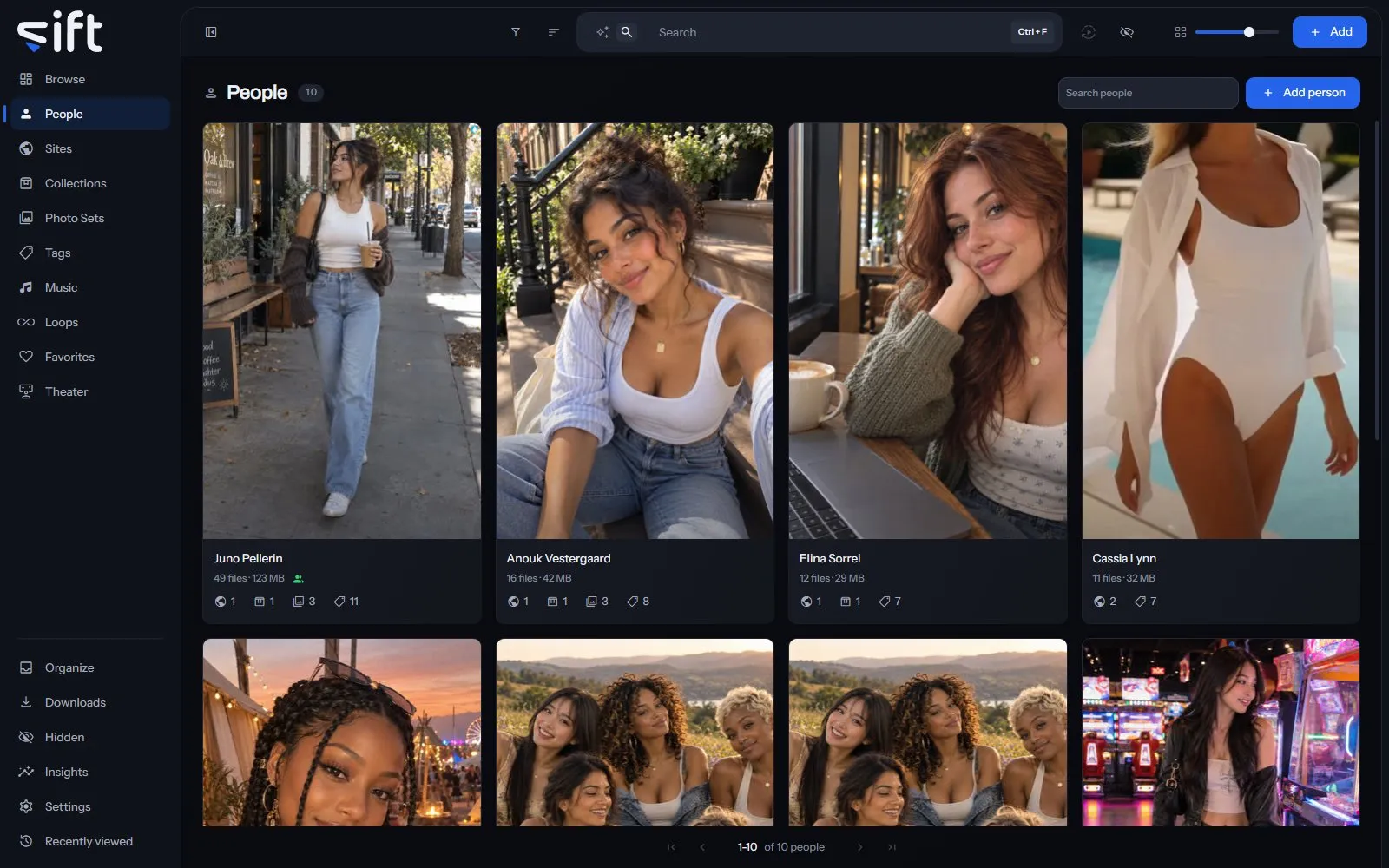
Sift recognizes faces with the InsightFace models, which run on your computer. It looks people up on the stash-boxes you add, such as StashDB, PMVStash and FansDB.
The People wall
Section titled “The People wall”Each card shows a person’s cover, how many files they’re on and how much room those take. The marks under it count the Sites, Collections, Photo Sets and tags their files are in. Click a card to open the person’s page.
Search people finds a person by their name or any other name they go by. Add person makes a person with a name and, if you like, a picture.
Sort by offers Newest first, Oldest first, Recently edited, Name A-Z, Name Z-A, Most files, Fewest files, Favorites first and Highest rated. Four more orders add up every file under each one. Largest in total and Smallest in total go by size, and Longest in total and Shortest in total by length.
Filter opens columns about the people themselves:
- Gender, Hair color, Eye color, Ethnicity, Nationality, Breast type and Height: from each person’s record.
- Age: worked out from the birthdate, in bands.
- Career start: the year their career started.
- PMV creator: whether they make PMVs.
- Tags: the tags on the person, not on their files.
- Enriched by: which stash-box filled in the person, or Not enriched.
- Has a cover photo: whether the person has a cover.
- Created by: what made the person: you, a stash-box, or Sift automatically from a folder name, a face, a download or a swap.
- Sharing status: who the person is shared with. Only an admin sees this column.
- Stash-box disagreements: people whose stash-boxes give different answers. Only an admin sees this column.
A person’s menu on the wall
Section titled “A person’s menu on the wall”Right-click a card, or select several, to open the menu:
- Add to: holds Tag, which puts a tag on the person, and Favorites.
- Pin or Unpin: keeps the person at the top of the wall, or takes them off.
- Rating: gives the person stars.
- Merge: folds the people you picked into one. You choose which one stays.
- Rename: gives the person another name.
- Auto-enrich: asks the stash-boxes about the person and keeps an exact match. Its rows choose All stash-boxes or one box.
- Enrich: shows what the stash-boxes answer, so you choose the match yourself.
- Don’t enrich or Allow enrichment: keeps the person from being sent to any stash-box, or lets Sift ask about them again.
- Hide or Unhide: moves the person into Hidden for you, or brings them back.
- Share: chooses the Users who see the person.
- Visibility: shows who can reach the person, and through what.
- Delete: takes the person off every file they’re on and forgets their other names. The files themselves aren’t touched.
Only an admin sees Add to’s Tag, Merge, Rename, the three stash-box rows, Share, Visibility and Delete.
A person’s page
Section titled “A person’s page”The page opens with the person’s cover and what Sift has on them. Under the name, the other names they go by appear as chips, and their links as marks. A line says how many files they’re on.
The line Created by says what made the person. Created by Sift, from a folder name means Sift made them from the name of a folder their files are in.
Point at the cover for Change the picture, Reframe the cover and Remove the cover. Click the cover to see it full size. The button at the right, Hide the details, folds this part away so the files start at the top.
More opens the whole record, with every field shown, and Less closes it again. Edit turns the record into a form; click Save or Cancel when you’re done.
The faces lines
Section titled “The faces lines”When Sift recognizes faces, the lines under the cover say what it knows of this person’s face:
- You confirmed a number of faces as this person. Only a face you confirm teaches Sift what they look like.
- Sift recognized a number as this person automatically. Click the line to review them in Organize.
- Awaiting your input counts the faces Sift thinks may be them. Click it to say yes or no to each one.
- Files from the folder with a face still unnamed counts the files filed under them from a folder whose face nobody has named. Click it to see those files in Browse.
A bar under the lines shows how well Sift recognizes this person. Its sentence reads, for example, Sift now identifies Anouk effectively. A line with nothing to count isn’t shown.
Recognition is turned on in Settings > Faces > Recognize faces in your library.
Aliases and stash-box links
Section titled “Aliases and stash-box links”Aliases in the form holds the other names a person goes by, one each. Searching for any of them finds the person.
Stash-boxes lists the stash-box entries the person is linked to. Auto-enrich and Enrich make that link and fill in fields from it. Settings > Stash-boxes > Auto-enrich using chooses the box a plain Auto-enrich asks. A row for each field, such as Settings > Stash-boxes > Name, chooses whether a stash-box fills it in, replaces it or leaves it alone.
The tabs
Section titled “The tabs”The tabs under the header each show one side of the person: Files, Photo Sets, Loops, Tags, Sites, Collections, Music, Seen with and History. Seen with shows the people who appear in the same files.
Select cards on Seen with, Tags or Sites to filter the Files tab to the files with them. The count beside the tab words says how many you picked, and its cross clears them.
On the Files tab, a tile’s own row Use as the cover makes that file the person’s cover.
Options
Section titled “Options”Options at the top of a person’s page holds:
- Auto-enrich and Enrich: ask the stash-boxes about this person, as on the wall.
- Don’t enrich or Allow enrichment: keeps this person away from every stash-box, or lets Sift ask about them again.
- Sharing: chooses the Users who see this person.
- Visibility: shows who can reach this person, and through what.
- Merge into…: folds this person into another one you pick. Their files, usernames, aliases, links and confirmed faces move across, and empty fields are filled in. A merge can’t be undone.
- Hide them: moves the person into Hidden. On a hidden person the row reads Stop hiding them, which brings the person back.
- Delete: deletes the person, as on the wall.