Insights
Insights shows your library, your viewing and your organizing in numbers, for a day, a week, a month, a year or all of it. To open it, click Insights in the sidebar.
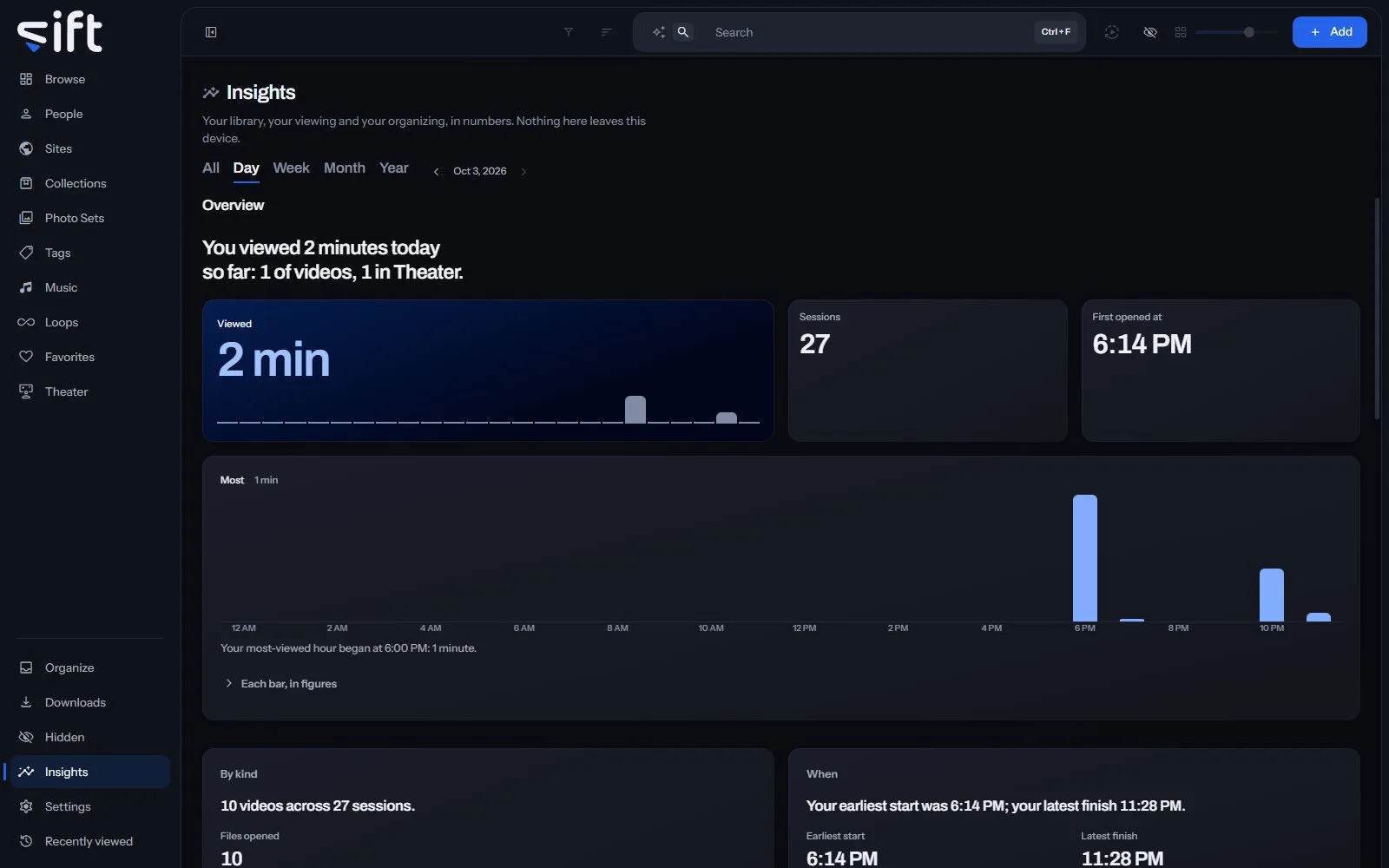
Everything Insights counts stays on the device Sift runs on, and only you see your own.
Choose a period
Section titled “Choose a period”The tabs at the top choose the period: All, Day, Week, Month or Year. Earlier and Later step to the period before or after. Each period has its own address, so Back returns to the one before and you can bookmark one.
What is counted
Section titled “What is counted”Insights is a board of tiles that fills the window. The first screen holds the period’s headline and the time you spent viewing with its bars. Beside them stand the top People as faces, the top file, the Sites, the days and the counts. The rest follows by family. Press a tile to open its table on Stats. Each tile says one thing:
- Overview: how long you viewed, in how many sessions, and when you opened Sift first, with a chart of the period.
- By kind: your viewing split into videos, pictures and Theater, the files you opened and came back to, and the Photo Sets you looked through.
- When: your earliest start and latest finish, and the hours you view most.
- Most viewed: your top People, Sites, Tags, Photo Sets and Files.
- Theater: the time you spent in Theater, in how many sessions, and the Saved Layouts you watched.
- Visits: how many times you opened Sift, and under First opened, the people you opened first.
- Opinions: the files you rated and starred and your O count, with Files you starred and Most O presses.
- Organizing: the questions you answered in Organize, card by card.
- What was imported: the files imported into your library, by Site.
- What Sift did: how long Sift worked on its tasks, by task. Only an admin sees this card.
Point at a bar, a day or an hour of a chart to read its figures. With the keyboard, a chart is one stop and the arrows move along it. Every figure has a small What counts mark at the end of its card. Point at it to read exactly what the figure counts. Stats shows every figure behind Insights, one panel per table, grouped as on the board: Viewing, People, Sites, Organizing, Theater, Library and Alongside. The index down the side jumps to a family. Each panel has a small chart, the figures, and what they count under the (i) beside the title. Copy puts the table on the clipboard for a spreadsheet. Press a tile on Insights to open Stats at its table; Back returns to Insights. See this week’s recap (or today’s, this month’s, this year’s), beside Stats, opens the period’s recap, or says when one will be created.
Alongside, last on Week, Month, Year and All, says when two things rose and fell together in your own record. Each sentence says over how many periods, with both figures beside it. It needs at least eight periods. It never says one thing caused another. For example: “Over 9 weeks, the weeks you viewed Theater most were the weeks you starred the most files.”
A card with too little to say yet is left out. While Hidden is locked, the figures leave out what you hid, and the page says so. Unlock Hidden to include it.
Recaps
Section titled “Recaps”A recap is a day, a week, a month or a year told in a handful of cards. Sift creates one the day after the period closes, when there was enough viewing in it. A new recap is announced at the top of Insights and on Browse, a week’s for a week and a day’s for a day. Settings > Insights turns each kind of recap on or off; the ones already created stay. A recap re-counted after a correction says so in History.
The recaps are listed under Recaps at the foot of Insights. Open one to step through its cards, all one size, with Earlier and Later. Save as picture saves a picture of the card to the folder your screenshots go to, set in Settings > Playback > Save screenshots to. See this week in Insights opens the same period on the Insights page.
Each card opens with a few words and a line about what the number means for you. The comparison is with your own usual day or the period before, never anyone else. The plain sentence underneath says exactly what was counted.
A recap keeps its figures as they were when the period closed. Something you hide later still leaves its cards while Hidden is locked.
Stop counting
Section titled “Stop counting”Insights counts what Sift notes about your use: what you watch, open and search for. To pause it, turn off Settings > Privacy and Security > Keep your history. Nothing new is noted until you turn it on again.