Step 3: Add your folders
Sift shows the files in the folders you add, and reads each folder where it is. To add one, open Settings > Folders and click Add a folder.
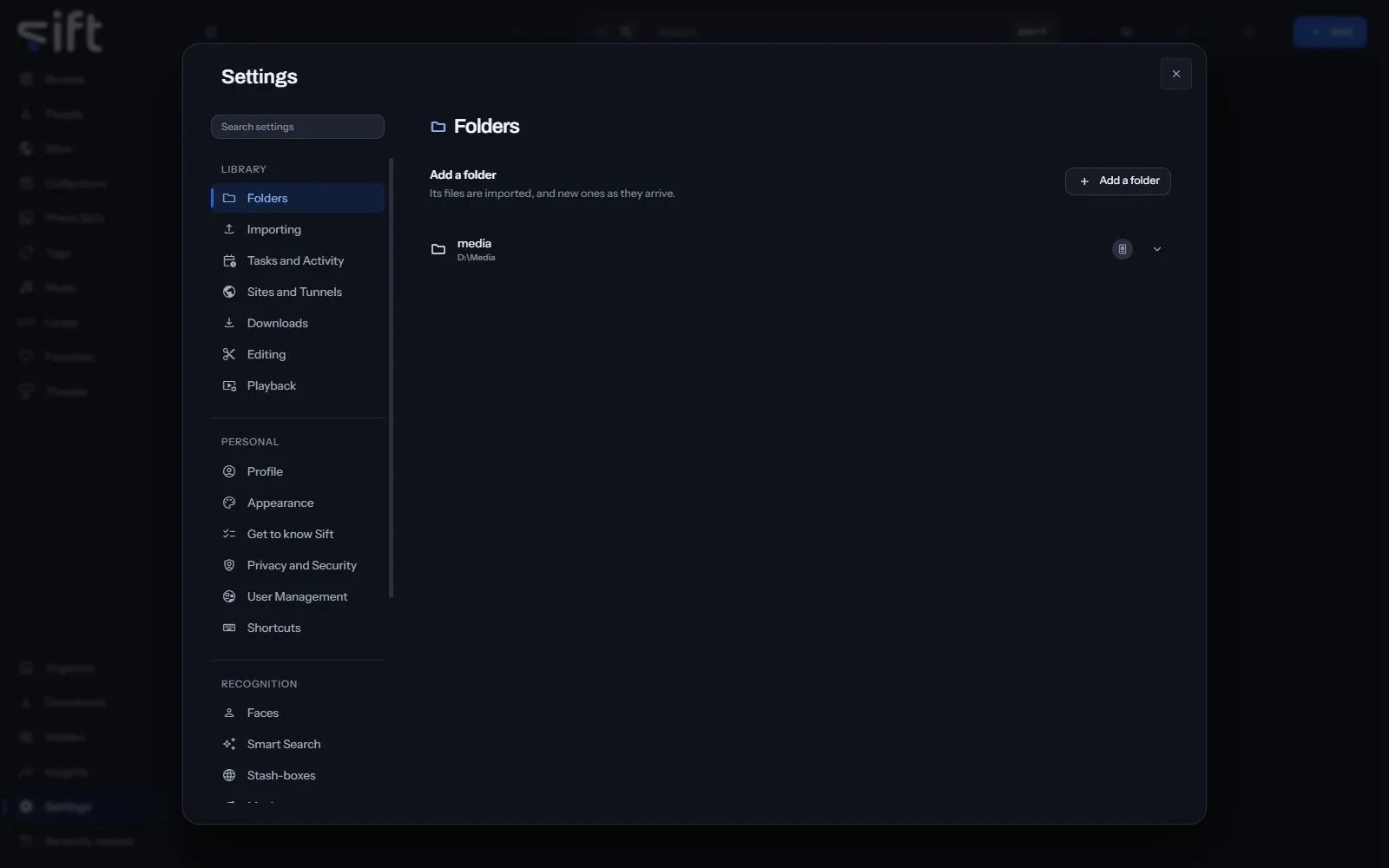
A folder can be on your computer, on another drive, or on a network share Windows can already open. Sift never moves, renames or deletes a file there unless you ask it to.
Add a folder
Section titled “Add a folder”- In Settings > Folders, click Add a folder.
- In the Sift app, choose the folder in Windows’ own folder window. In a browser, click through the list to the folder you want, then click Add folder.
- Sift imports the folder’s files, and new ones as they appear in it.
In a browser, the list starts at Folders Sift already has. Click Browse this device to see the drives of the device Sift runs on, and Back to the folders Sift has to return.
Note: A folder Sift can’t write in still works. Sift can read everything in it, and can’t delete or move anything there.
Your first folder
Section titled “Your first folder”When your library has no folders, Browse shows Add a folder in the middle of the screen. A folder added there isn’t read until you choose to scan it. Browse then says Sift has your folders and hasn’t read them yet. and offers a choice:
- Scan now: every file in your folders is read now. On a large library this can take hours, and your computer may feel slower while it runs.
- Run during quiet hours: the scan waits until quiet hours start, which you set in Settings > Tasks and Activity > Quiet hours.
After your first folder is added, Sift offers to create a Download folder for the files you download. Click Create this folder, Choose another or Skip. Step 4: Your first download says how to change it later.
A big first import
Section titled “A big first import”Sift counts every folder you add first, so Activity can say how many files are left. While a folder is being scanned, each file’s thumbnail, fingerprint, face scan and Smart Search follow its read. Nothing waits for the whole scan to end. On a network share a file is read once into Sift’s cache and every task reads that copy.
A folder’s menu
Section titled “A folder’s menu”Right-click a folder in the list to open its menu:
- Scan now: reads the files in this folder again, and nothing more.
- It moved: appears when a folder isn’t answering, so you can tell Sift where it went.
- Auto-enrich this folder: asks your stash-boxes about each file in the folder. An exact match is filled in straight away, and anything less certain waits in Organize.
- Hide or Unhide: moves the folder into Hidden, or brings it back.
- Sharing: chooses the Users who see the folder.
- Visibility: shows who can reach the folder, and through what.
- Don’t enrich or Allow enrichment: keeps the folder’s files from being looked up anywhere outside your computer, or lets them be looked up again.
- Don’t swap or Allow swapping: keeps the folder’s files out of a swap with another Sift, or lets them be offered again.
- Remove: Sift forgets what’s in the folder. Your files aren’t moved or deleted, and adding the folder again within thirty days brings everything back.