Folders
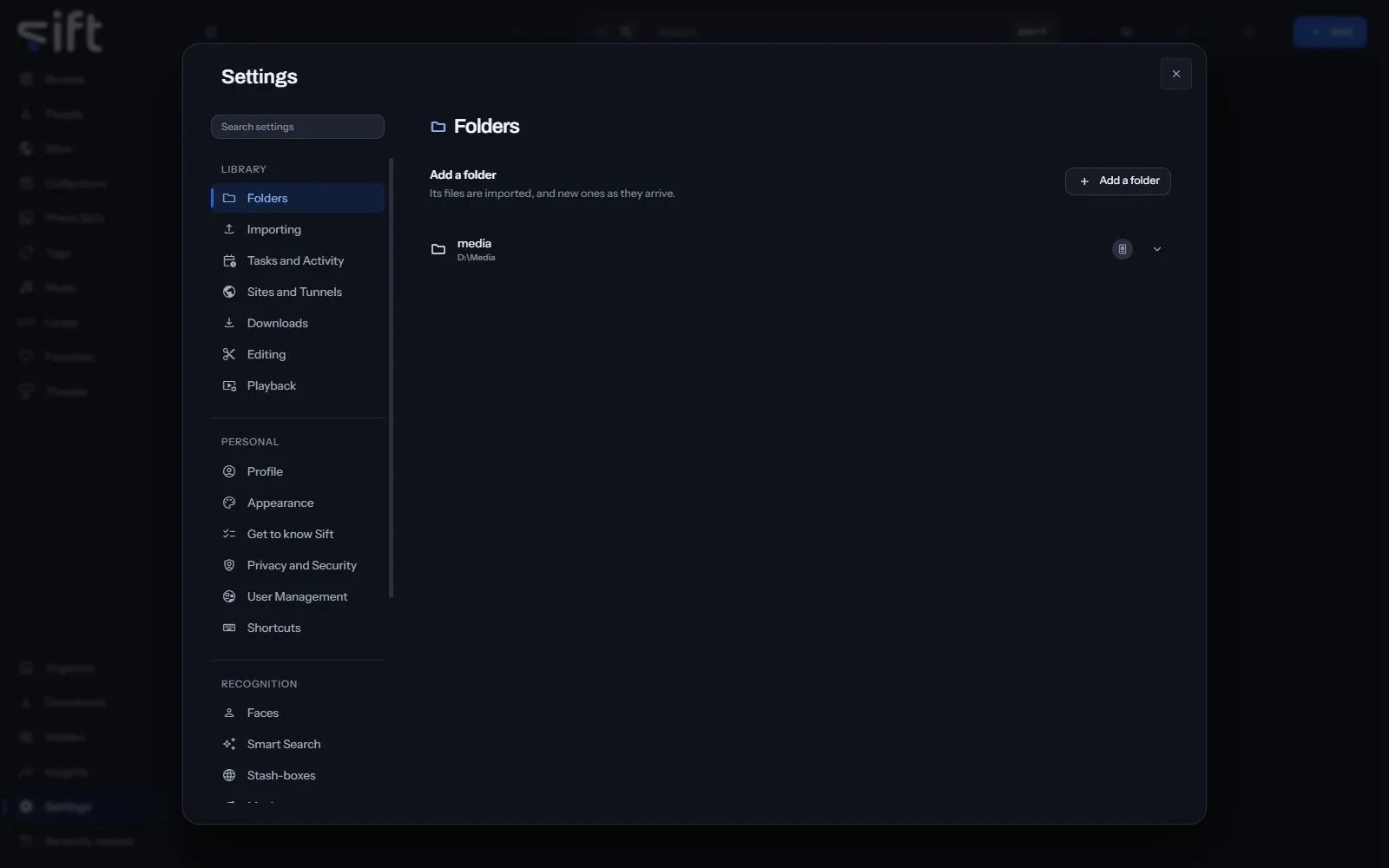
Folders is the list of folders Sift imports your files from. To open it, go to Settings > Folders.
Come here to add a folder to your library, scan one again, or remove one. Sift imports what is in a folder you add, and new files as they appear in it.
On this pane
Section titled “On this pane”The pane holds these, in this order:
- Add a folder: opens the folder chooser. The folder you choose is added to your library and its files are imported.
- Your folders: one row for each folder in your library, with its location. Click a row to see the folders inside it.
- Sift data: in the Sift app on your computer, the two folders where Sift keeps its own data, separate from your media.
- Save files to: in the Sift app, the folder a file you save to your computer goes to. It’s your Downloads folder unless you choose another.
The menu on a folder
Section titled “The menu on a folder”Click More at the end of a folder’s row, or right-click the row, to choose one of these:
- Scan now: reads the folder again for new, changed and removed files.
- It moved: shown when Sift can’t reach the folder. Tell Sift where the folder is now.
- Auto-enrich this folder: looks up the folder’s files on your stash-boxes. Only an admin sees it.
- Hide or Unhide: takes the folder’s files into Hidden, or brings them back.
- Sharing: chooses which guests can see the folder and everything in it.
- Visibility: shows who can see the folder and what decides it.
- Don’t enrich or Allow enrichment: keeps the folder’s files from being looked up on a stash-box, or lets them be looked up again.
- Don’t swap or Allow swapping: keeps the folder’s files out of a swap, or lets them be sent again.
- Remove: takes the folder out of your library. You confirm first, and your files stay on the disk.
Nothing on this pane is a stored setting.