Playback
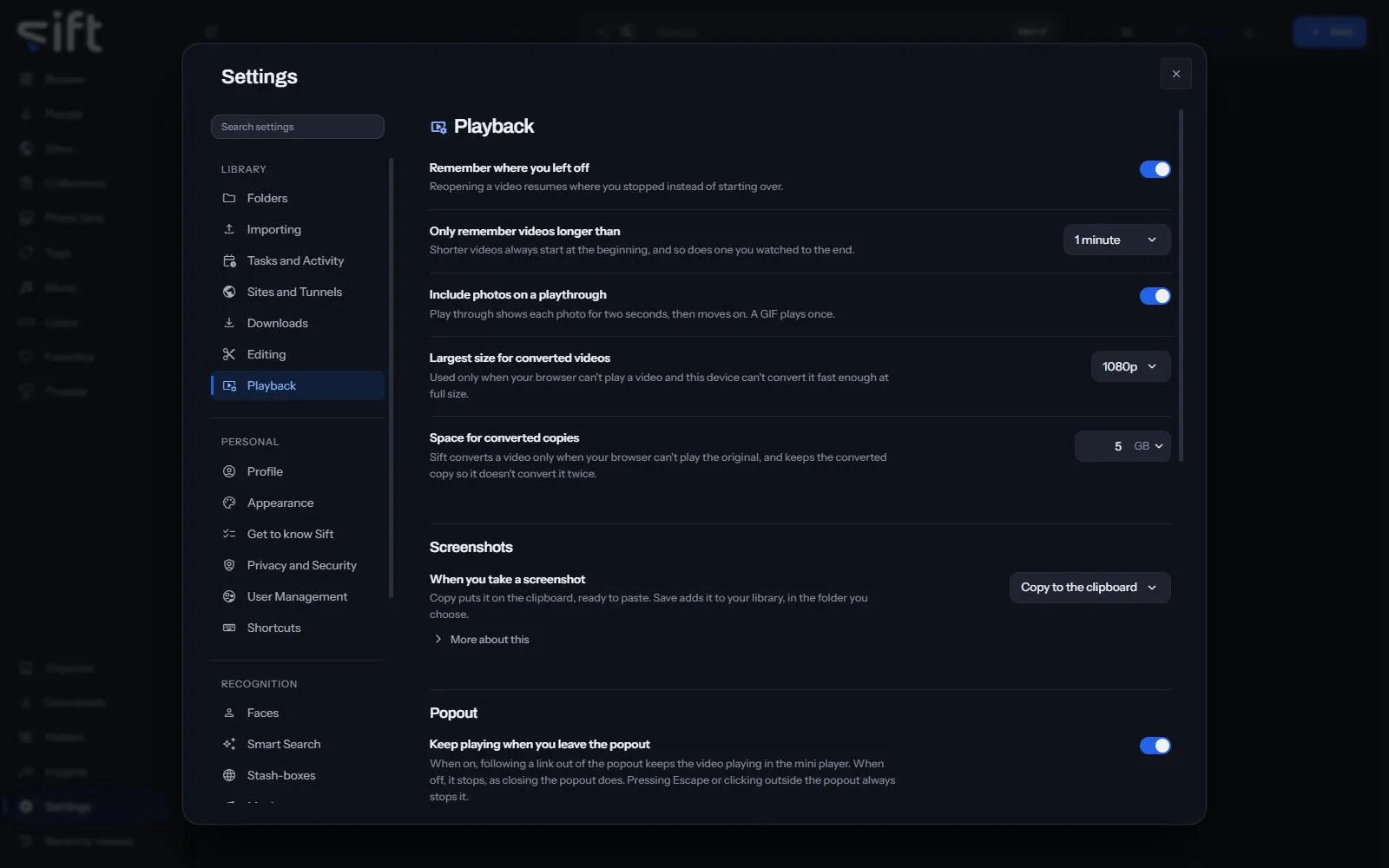
Playback is where you choose how videos and photos play, in the player, the popout and Theater. To open it, go to Settings > Playback.
Come here to make Sift remember where you left off, choose what a screenshot does, or set how Theater opens.
On this pane
Section titled “On this pane”The first rows have no heading: resuming, photos on a playthrough, and converted copies. Then the pane draws these groups, in this order:
- Screenshots: what happens when you take a screenshot of a video, and where a saved one goes.
- Popout: whether a video keeps playing in the Mini player when you leave the popout.
- Remote: whether a phone signed in as you can control this browser.
- Theater: the layout Theater opens with, center stage, autoplay and how long each cell plays.
Every setting
Section titled “Every setting”Remember where you left off
Section titled “Remember where you left off”Reopening a video resumes where you stopped instead of starting over.
- Path: Settings > Playback > Remember where you left off
- Default: On
- Who sets it: each User, for themselves
Only remember videos longer than
Section titled “Only remember videos longer than”Shorter videos always start at the beginning, and so does one you watched to the end.
- Path: Settings > Playback > Only remember videos longer than
- Default: 1 minute
- Choices: Every video, 30 seconds, 1 minute, 3 minutes, 5 minutes, 10 minutes, 30 minutes
- Who sets it: each User, for themselves
Include photos on a playthrough
Section titled “Include photos on a playthrough”Play through shows each photo for two seconds, then moves on. A GIF plays once.
- Path: Settings > Playback > Include photos on a playthrough
- Default: On
- Who sets it: each User, for themselves
When you take a screenshot
Section titled “When you take a screenshot”Copy puts it on the clipboard, ready to paste. Save adds it to your library, in the folder you choose.
Over a plain http address the browser has no clipboard for pictures, so there the screenshot is downloaded instead.
- Path: Settings > Playback > When you take a screenshot
- Default: Copy to the clipboard
- Choices: Copy to the clipboard, Save to a folder
- Who sets it: each User, for themselves
Save screenshots to
Section titled “Save screenshots to”A folder in your library. Unless you choose one, screenshots go to your download folder.
- Path: Settings > Playback > Save screenshots to
- Default: empty
- Who sets it: each User, for themselves
Largest size for converted videos
Section titled “Largest size for converted videos”Used only when your browser can’t play a video and this device can’t convert it fast enough at full size.
- Path: Settings > Playback > Largest size for converted videos
- Default: 1080p
- Choices: 360p, 480p, 720p, 1080p, 1440p, 4K
- Who sets it: an admin, for everyone on this Sift
Space for converted copies
Section titled “Space for converted copies”Sift converts a video only when your browser can’t play the original, and keeps the converted copy so it doesn’t convert it twice.
- Path: Settings > Playback > Space for converted copies
- Default: 5 GB
- Range: 1 to 512 GB
- Who sets it: an admin, for everyone on this Sift
Default layout when Theater opens
Section titled “Default layout when Theater opens”You can choose another from the wall itself.
- Path: Settings > Playback > Default layout when Theater opens
- Default: Grid 1x3
- Choices: Grid 1x1, Grid 1x2 (P), Grid 1x3, Grid 1x2 (L), Grid 2x2, Stage View 1x1, Stage View 1x2, Stage View 1x3, Stage View 2x2
- Who sets it: each User, for themselves
When a preview comes up
Section titled “When a preview comes up”Stage View shows up to four videos in focus with previews under them. Double-clicking a preview always brings it into focus.
Something new means the next file in that preview’s queue. Resuming after a pause, a seek or a stall isn’t a new file, so it doesn’t bring a preview into focus.
- Path: Settings > Playback > When a preview comes up
- Default: When I double-click it
- Choices: When I double-click it, As soon as it starts something new
- Who sets it: each User, for themselves
Start playing when Theater opens
Section titled “Start playing when Theater opens”Every cell starts as soon as Theater opens.
- Path: Settings > Playback > Start playing when Theater opens
- Default: Off
- Who sets it: each User, for themselves
Play the next file after
Section titled “Play the next file after”How long a cell shows one file before it plays the next, finished or not.
Leave it empty to wait for each file to end.
- Path: Settings > Playback > Play the next file after
- Default: No timer
- Range: No timer to 3600 sec
- Who sets it: each User, for themselves
Pick up where you left off
Section titled “Pick up where you left off”Coming back to Theater, or reloading the page, brings back the layout and what each cell was playing. It’s forgotten when the window is closed.
- Path: Settings > Playback > Pick up where you left off
- Default: Off
- Who sets it: each User, for themselves