Sites and Tunnels
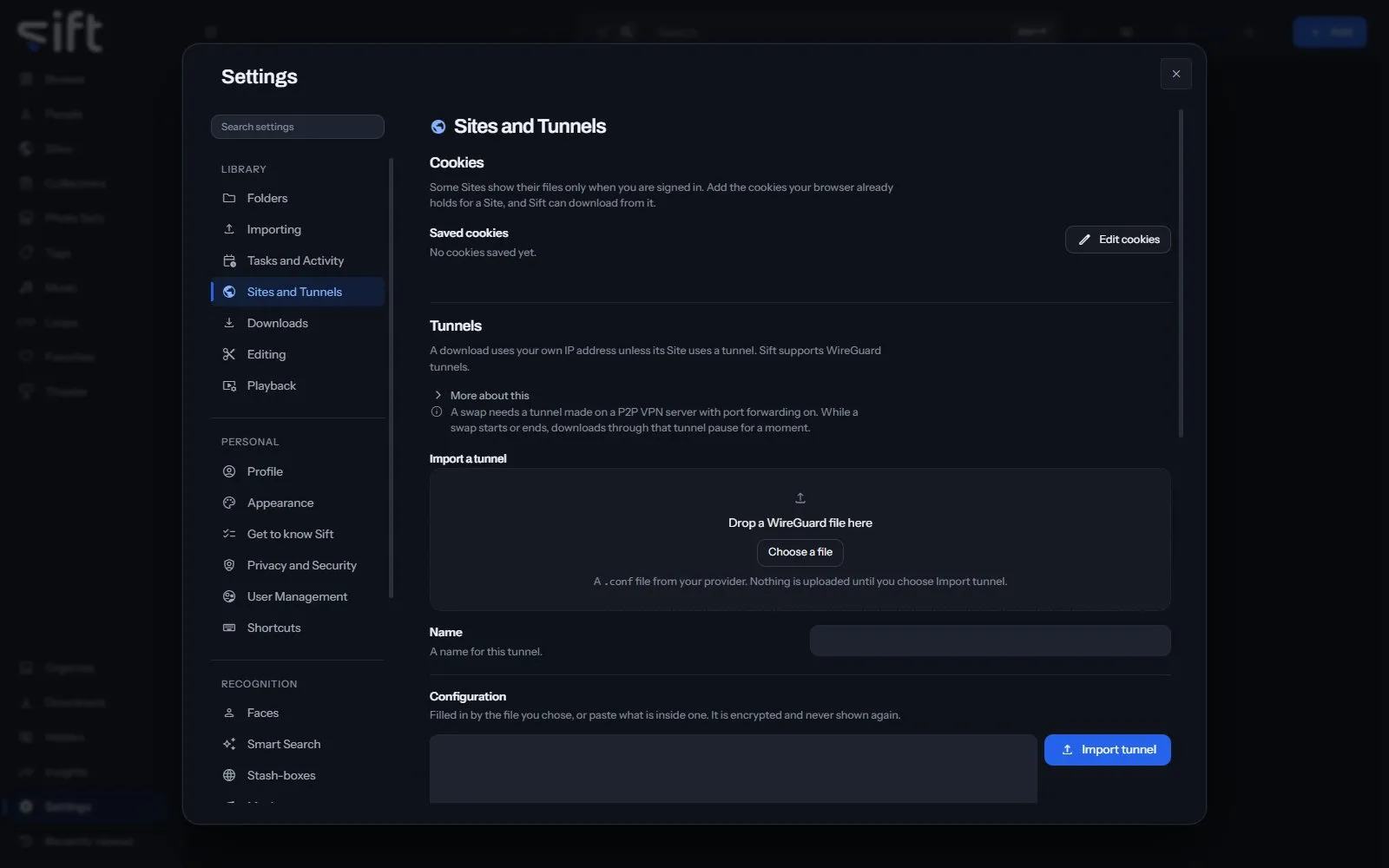
Sites and Tunnels is where you give Sift the cookies and tunnels it downloads with. To open it, go to Settings > Sites and Tunnels.
Come here to sign Sift in to a Site with your browser’s cookies, or to send a Site’s downloads through a tunnel. Sift supports WireGuard tunnels and runs each one with its tunnel client, wireproxy.
On this pane
Section titled “On this pane”The pane draws these groups, in this order:
- Cookies: the cookies your browser already holds for a Site, so Sift can download what the Site shows only when you’re signed in. Edit cookies adds, replaces or deletes them.
- Tunnels: your WireGuard tunnels. Import a tunnel takes a
.conffile from your provider: drop it, or Choose a file, give it a Name, and choose Import tunnel. - Site tunnels: which tunnel each Site uses. Default for every Site is what a Site uses when you haven’t chosen. Choose a tunnel for each Site sets one Site at a time.
- Swap tunnels: the tunnel a swap goes through. A swap never uses your own connection.
- Supported Sites: every Site Sift recognizes a link from, and how well each works. Show all Sites opens the whole list.
What the Supported Sites marks mean
Section titled “What the Supported Sites marks mean”- Supported: tested and working.
- Routing only: not officially supported, but usually works through a tunnel you added.
- One link at a time: a single link works, but not a whole profile or channel.
- Required: nothing downloads until cookies are added.
- Partial: public content downloads without cookies; some needs them.
- Not required: everything downloads without cookies.
Every setting
Section titled “Every setting”Tunnel for joining a swap
Section titled “Tunnel for joining a swap”The tunnel your side of a swap goes through when you join one.
- Path: Settings > Sites and Tunnels > Tunnel for joining a swap
- Default: empty
- Who sets it: an admin, for everyone on this Sift