Faces
Faces is where you set up face recognition: how Sift finds the faces in your library and which people it can recognize. To open it, go to Settings > Faces.
Come here to check who Sift can recognize, or to move facial fingerprints between Sift libraries. Sift recognizes faces with the InsightFace models, or with YuNet and ArcFace when you choose Permissive.
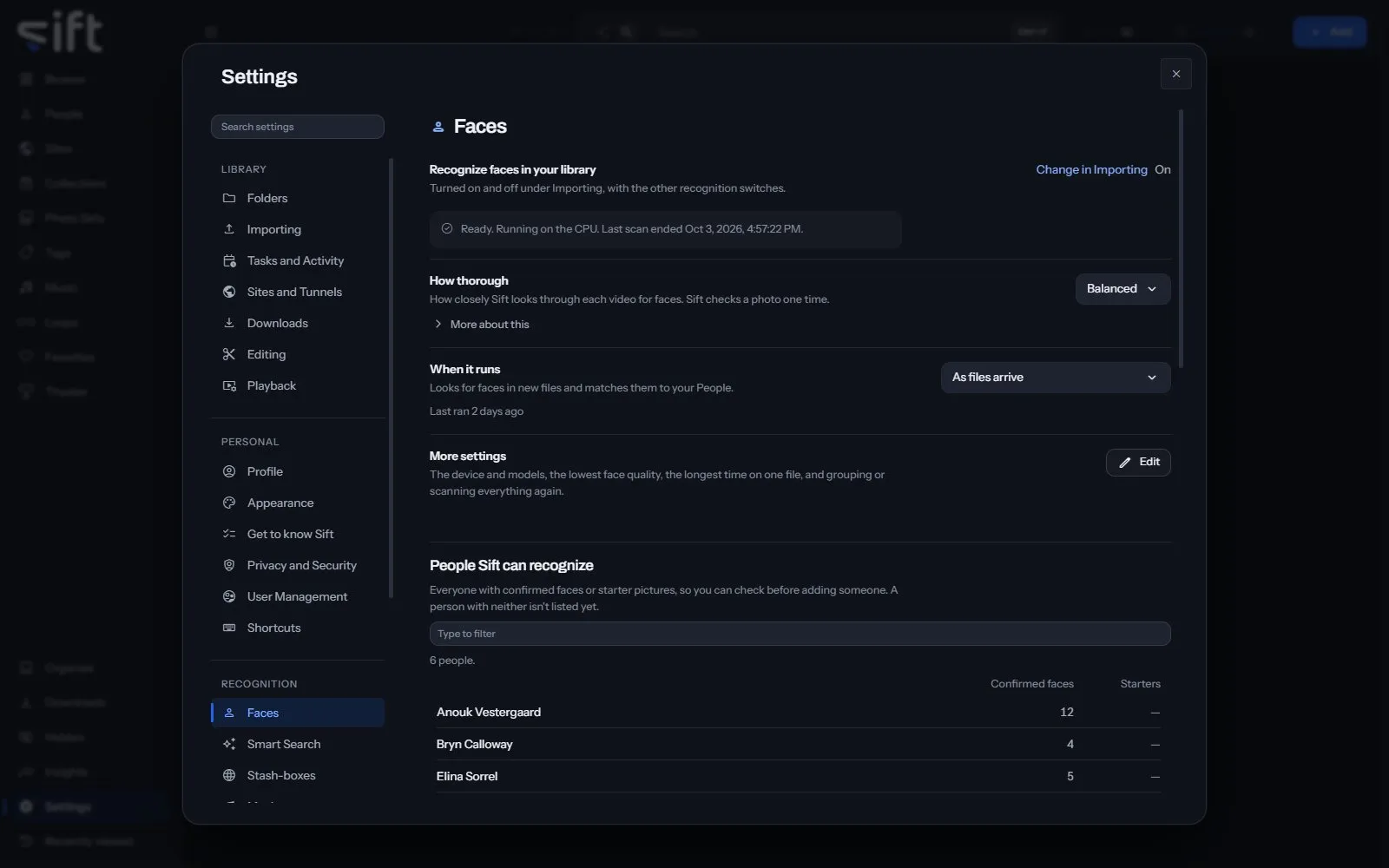
On this pane
Section titled “On this pane”The first rows have no heading: the switch, how thorough Sift is, when it runs, and More settings. The switch is turned on and off in Settings > Tasks and Activity > Import tasks > Identify settings. Then the pane draws these groups, in this order:
- People Sift can recognize: everyone with confirmed faces or starter pictures, so you can check before adding someone. Type in the box over the list to find someone by name.
- Waiting for a matching face: people from a facial fingerprints file or a folder that no face in your library matches yet. Type in the box over the list to find someone by name. The list scrolls in place, as the one above does. Each line says how many faces it holds and how many were confirmed. It also names the file or folder it came from.
- Facial fingerprints: what Sift learned from the faces of the people it can recognize. They move between Sift libraries as one file, without any of your files.
- Creating facial fingerprints: teach Sift many people together from photos you already keep, one subfolder for each person.
- Start over: delete every face Sift found.
Rows the pane draws by hand
Section titled “Rows the pane draws by hand”- More settings: Edit opens the device and models, the lowest face quality and the longest time on one file. It also holds Group faces again and Identify all files again. A download that can’t connect shows why and what to check. It uses the proxy set in Windows, or in
HTTPS_PROXY. A proxy set by an automatic configuration script isn’t read. - Use stash-box pictures as starters: Run keeps up to five stash-box pictures of a person linked to a stash-box who has no confirmed faces.
- Remove and Create a person, at the end of each row waiting for a matching face: forget their facial fingerprints, or create that person now. Nothing in your library changes when you remove one.
- Add people Sift can recognize from a facial fingerprints file to your library: Import file opens the file chooser. Sift can then recognize the people in the file, and nothing is added to your library.
- Export your library’s facial fingerprints: Export saves what Sift learned about everyone it can recognize as one file. Choose people opens the list of who goes in it, with two choices at its head. Include everyone, except the people you pick starts with everyone ticked, and you untick whoever stays out. Include only the people you pick starts with nobody ticked, and you tick whoever goes in. The press at the foot says how many people the file will carry, and Sift remembers your choice for your account. In that list, anyone with fewer than 20 confirmed faces wears the strength bar their page draws. The words beside it say “Only N confirmed faces: Sift recognizes them less surely”. The file carries each person’s count, so the library that imports it shows it.
- Include their face pictures: facial fingerprints are numbers made by one face model, and a Sift set to a different model can’t compare them. With the pictures in the file, the other library measures the faces again with its own model, so the file works anywhere. Without them, no picture of a real face leaves your computer.
- Import a structured folder to create facial fingerprints: Import folder opens the folder chooser. Sift keeps the face it learns from each photo and never adds the photo to your library.
- Face data: Delete face data deletes every face Sift found and everything it learned from them. Your files aren’t touched.
Every setting
Section titled “Every setting”Recognize faces in your library
Section titled “Recognize faces in your library”Sift finds the faces in your library and groups the ones that look alike, so you name a person once. Faces never leave this device.
Sift ships no face models. When you choose Download the models, Sift downloads the default set, InsightFace buffalo, from the insightface project on GitHub. The download is about 416 MB.
- Path: Settings > Faces > Recognize faces in your library
- Default: Off
- Who sets it: an admin, for everyone on this Sift
Recognition models
Section titled “Recognition models”Accurate finds more faces and suits almost everyone. Choose Permissive only when the license matters, for example when Sift is part of something you sell.
Accurate finds about 98 faces in 100, and its makers license it for research only, so you decide whether to download it. Permissive finds about 90 in 100, and anyone may use it for anything. Changing models measures every face again from the crops Sift kept, and new faces appear after Identify all files again. Facial fingerprints from one model can’t be read by the other, so a swap sends face crops instead.
- Path: Settings > Faces > Recognition models
- Default: Accurate
- Choices: Accurate, Permissive
- Who sets it: an admin, for everyone on this Sift
Run recognition on
Section titled “Run recognition on”Sift uses the CPU unless you choose a GPU. You can’t choose a GPU Sift can’t reach.
Sift ships the CPU-only build of its model runtime, so the GPU can’t be used until the GPU’s own runtime is added. Sift can download it under GPU in Settings > Performance. It’s about 1.3 GB, downloaded once and stored next to your libraries, so an update doesn’t remove it and a new library needs nothing. It needs an NVIDIA GPU and a current driver, and nothing else installed by hand.
- Path: Settings > Faces > Run recognition on
- Default: CPU
- Choices: CPU, GPU
- Who sets it: an admin, for everyone on this Sift
How thorough
Section titled “How thorough”How closely Sift looks through each video for faces. Sift checks a photo one time.
Balanced looks once a second through a clip up to 20 seconds long. It looks 20 to 30 times through a video up to 5 minutes long, and 30 times through anything longer. Fast looks half as often and finishes sooner. Deep looks three times as often, up to 60 times, and finds people who are on screen only briefly.
- Path: Settings > Faces > How thorough
- Default: Balanced
- Choices: Fast, Balanced, Deep
- Who sets it: an admin, for everyone on this Sift
Lowest face quality to accept
Section titled “Lowest face quality to accept”How sharp and how directly facing the camera a face must be. A blurred or turned face is easily mistaken for someone else.
Strict skips more blurred and turned faces, and faces under 112 pixels across. Balanced and Lenient skip faces under 96 pixels across. Lenient finds more people and makes more mistakes.
- Path: Settings > Faces > Lowest face quality to accept
- Default: Balanced
- Choices: Strict, Balanced, Lenient
- Who sets it: an admin, for everyone on this Sift
Longest time on one file
Section titled “Longest time on one file”Stops one very long file from holding up the rest.
When the time runs out, Sift saves its place and finishes the file later.
- Path: Settings > Faces > Longest time on one file
- Default: Automatic
- Range: Automatic to 600 sec
- Who sets it: an admin, for everyone on this Sift
Create people from these fingerprints as their faces are recognized
Section titled “Create people from these fingerprints as their faces are recognized”When faces in your library match someone in a facial fingerprints file or an imported folder, Sift adds that person. Turning it on does the same now for the fingerprints you added before.
Sift never goes by the name alone. If the faces already belong to someone here, the fingerprints are added to that person. When off, each group that looks like someone in the file waits for your answer. People from a swap wait for you.
- Path: Settings > Faces > Create people from these fingerprints as their faces are recognized
- Default: On
- Who sets it: an admin, for everyone on this Sift