Step 4: Your first download
Sift downloads the files on a Site’s page when you paste the page’s address. To start one, open Downloads and paste a link into Paste a link.
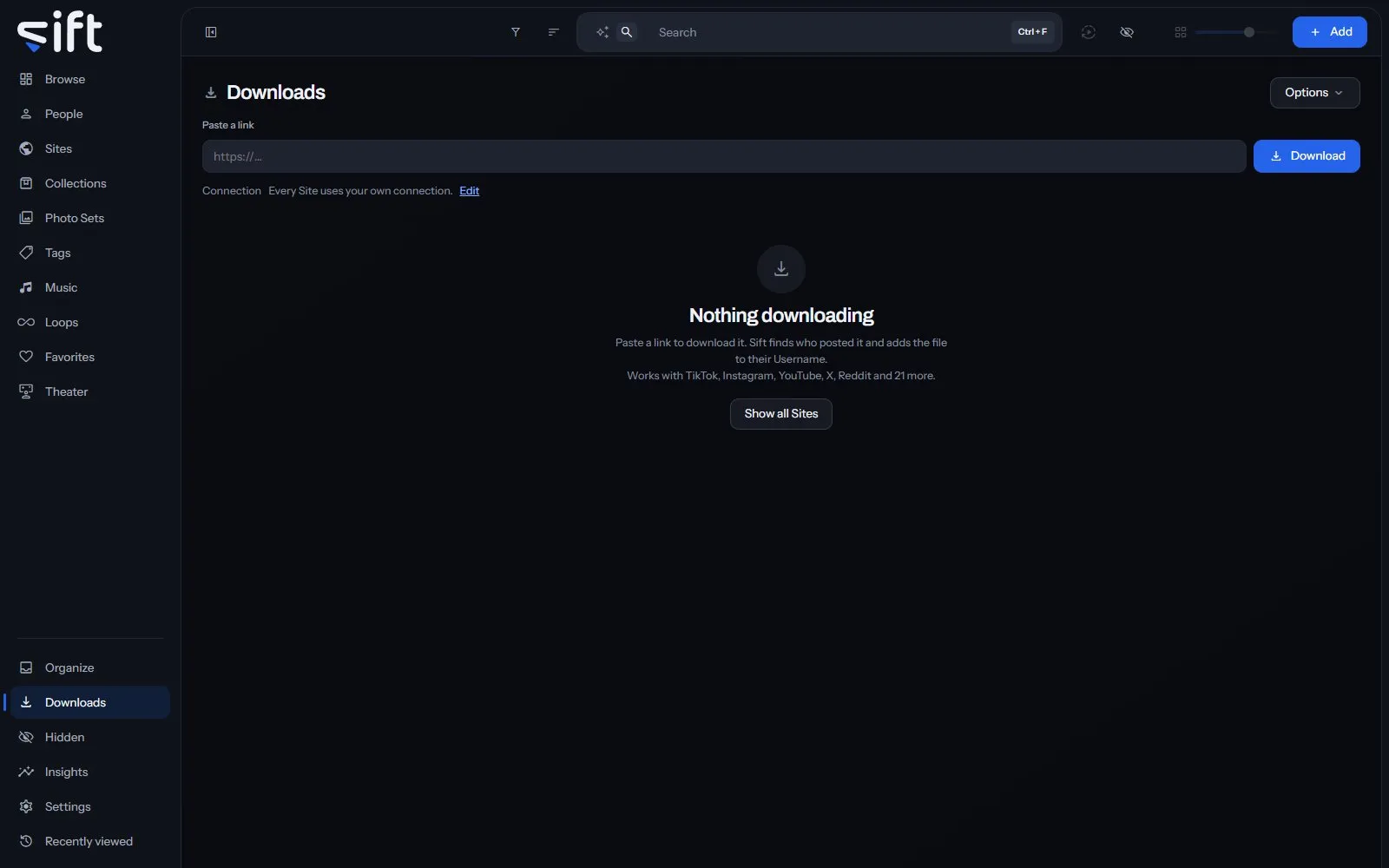
Sift downloads with yt-dlp and gallery-dl, which come with Sift. It finds who posted the file and adds it to their Username.
Download a link
Section titled “Download a link”- Copy the address of a page on a Site, such as a video or a profile.
- On Downloads, paste it into Paste a link. Pasting anywhere on the screen fills the box too.
- Click Download.
The Sites the paste is from appear under the box before you click. To download several links, paste one per line, and the button shows how many. A link to a playlist or a channel first says how many files it holds. Click Download all, or Download only this one for the link alone.
The Connection line under the box says which connection each Site downloads through. Its Edit opens Settings > Sites and Tunnels > Site tunnels, where a Site can use a tunnel instead of your own connection.
Where a download goes
Section titled “Where a download goes”Every download goes in the Download folder. To choose it for every download, use Settings > Downloads > Download folder. To choose it for the next download only, click Options, then Download folder.
While no folder is chosen, Options reads Not set, so each download asks, and a paste waits for you to pick one. A folder outside your library is added to your library, and whatever is already in it is imported.
Cookies for a Site that needs them
Section titled “Cookies for a Site that needs them”Some Sites show their files only when you’re signed in. Add the cookies your browser already holds for that Site, and Sift can download from it. Click Options, then Edit cookies, or open Settings > Sites and Tunnels > Cookies.
To get the cookie file, click How do I get this? in the Cookies window:
- Open the Site in your browser and use it the way you normally would.
- Export the cookies for that Site with a cookie export extension for your browser.
- Drop the file it saves into the Cookies window, or paste what’s inside it, then click Save cookies.
Sift shows what it read from the file before you save it, and never shows the cookies again. They’re locked with your password, which unlocks them each time you sign in.
Options
Section titled “Options”Options at the top right of Downloads holds:
- Edit cookies: adds, checks or replaces the cookies for a Site, and says how many downloads are waiting for cookies.
- Open settings: opens Settings > Downloads.
- Start or join a swap: trades files with another Sift.
- Skip links you have already downloaded: when selected, a link Sift has downloaded before isn’t downloaded again.
- Download folder: chooses the folder for the next download.