Updates and Info
Updates and Info is where you see which version of Sift you run, check for a new one, and read the license. To open it, go to Settings > Updates and Info.
Come here to check for a new version, or to find your device id for a swap. Sift tells you about a new version and never updates itself without asking you.
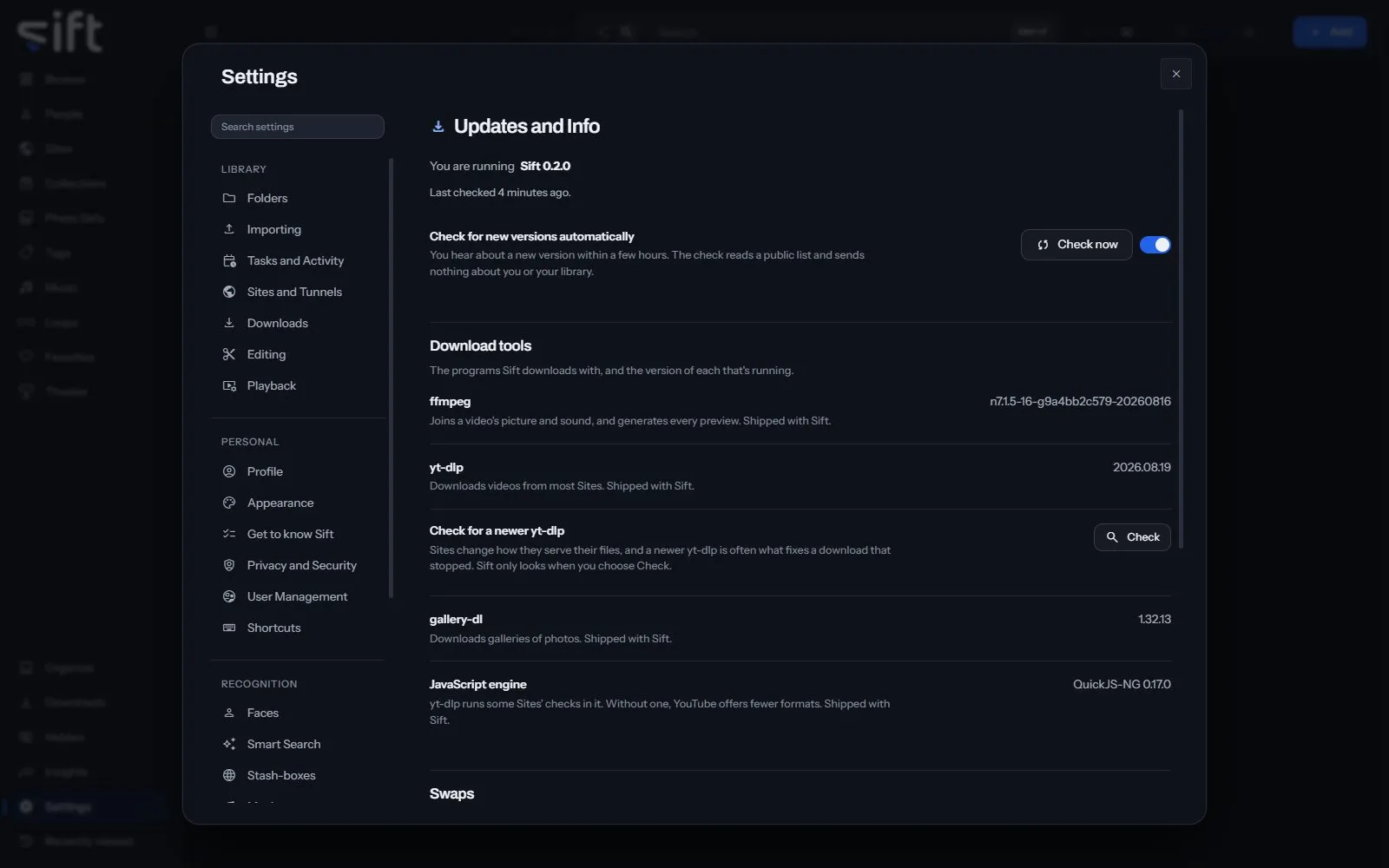
On this pane
Section titled “On this pane”The first rows have no heading: the version you run, the Check for new versions automatically switch and Check now. Then the pane draws these groups, in this order:
- Download tools: the programs Sift downloads with and the version of each: ffmpeg, yt-dlp, gallery-dl and the JavaScript engine.
- Check for a newer yt-dlp: Check looks for a newer yt-dlp, which often fixes a download that stopped.
- Swaps: your device id, which the other Sift is shown in a swap. Copy copies it.
- License and source code: the license, the address of the source code, and Read the notices for the tools Sift comes with.
When a new version is out, the pane shows its release notes and how to update.
Every setting
Section titled “Every setting”Check for new versions automatically
Section titled “Check for new versions automatically”You hear about a new version within a few hours. When it’s off, Sift checks only when you press Check now.
- Path: Settings > Updates and Info > Check for new versions automatically
- Default: On a schedule
- Choices: On a schedule, Only when I press it
- Who sets it: an admin, for everyone on this Sift
Hidden update notice
Section titled “Hidden update notice”The version whose notice you hid. Clearing it brings the notice back.
- Path: Settings > Updates and Info > Hidden update notice
- Default: empty
- Who sets it: an admin, for everyone on this Sift