Performance
Performance is where you see what your computer is, how much Sift does on it at the same time, and how Sift is keeping up. To open it, go to Settings > Performance.
Come here to benchmark your computer, to download GPU support, or to change how much Sift does at the same time.
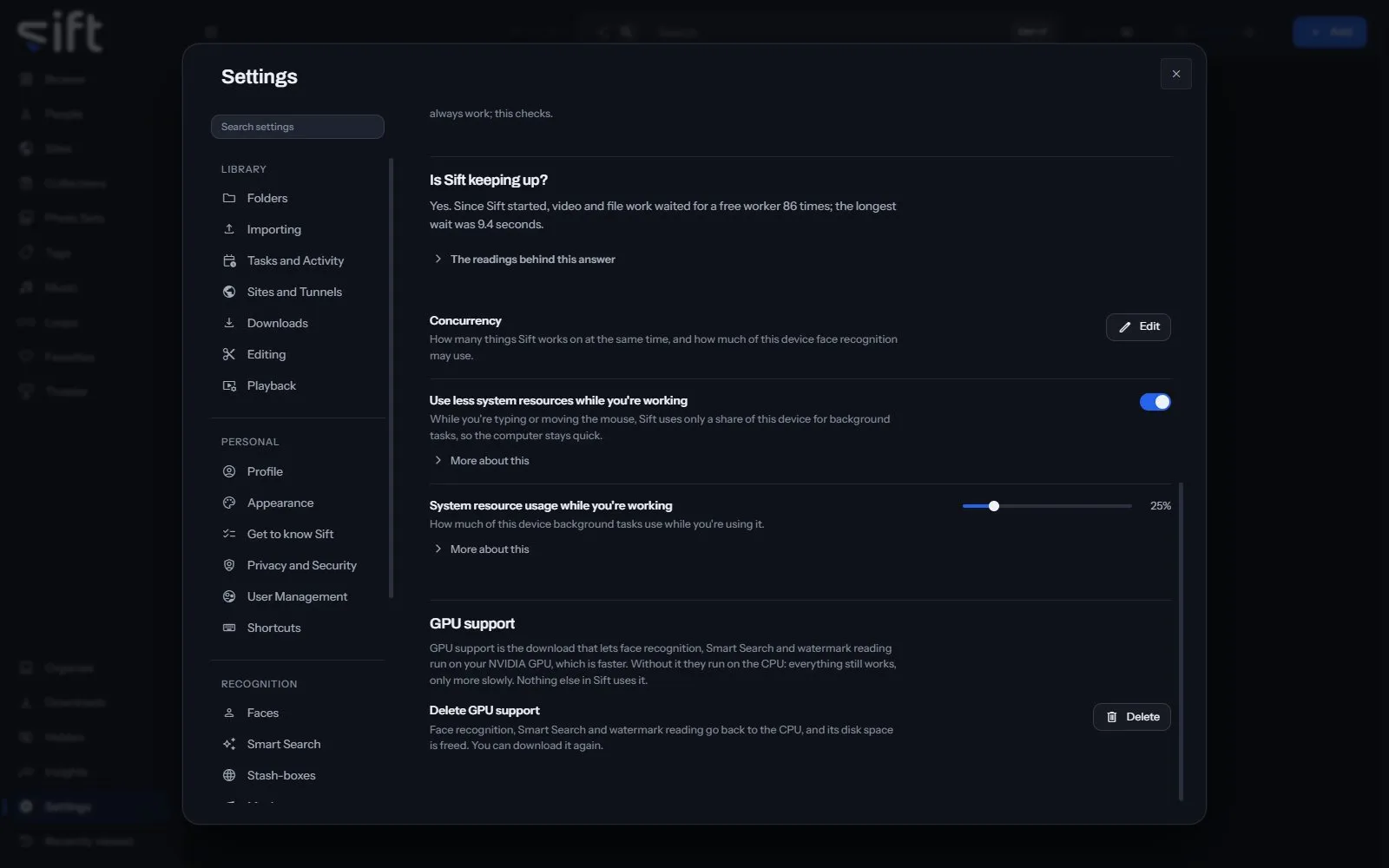
On this pane
Section titled “On this pane”The pane draws these groups, in this order:
- Device running Sift: its CPU, threads, memory, GPU, driver and video encoders, and what face recognition, Smart Search and converting video run on. Copy this device’s details copies them.
- GPU: whether Sift can use an NVIDIA GPU. Download the GPU runtime downloads GPU support, and Test the GPU checks that a real model runs on it.
- Benchmarking this device: Benchmark this device measures what your computer can do and suggests how many things Sift does at the same time.
- Is Sift keeping up?: whether Sift has stopped responding since it started, with the readings behind the answer. For a bug report holds the tables to copy into a report.
- GPU support: Delete GPU support sends face recognition, Smart Search and watermark reading back to the CPU and frees the disk space.
Rows the pane draws by hand
Section titled “Rows the pane draws by hand”- Concurrency: Edit opens how many tasks, previews and folder scans run at the same time, and how much of your computer face recognition may use.
The rows below under Every setting are on the pane itself and on the Concurrency page behind Edit.
Every setting
Section titled “Every setting”Tasks at the same time
Section titled “Tasks at the same time”How many background tasks Sift runs at the same time, such as scans and thumbnails.
Automatic chooses from your CPU, which is usually right. A change takes effect within seconds, with no restart.
- Path: Settings > Performance > Tasks at the same time
- Default: Automatic
- Range: Automatic to 64
- Who sets it: an admin, for everyone on this Sift
Previews at the same time
Section titled “Previews at the same time”Generating hover previews and scrubber strips uses the most CPU.
Automatic is half the tasks above, so previews never take every task.
- Path: Settings > Performance > Previews at the same time
- Default: Automatic
- Range: Automatic to 64
- Who sets it: an admin, for everyone on this Sift
Folder scans at the same time
Section titled “Folder scans at the same time”Limits scans when they keep a slow disk or a network share too busy to browse.
Automatic lets scans share the tasks above, and use all of them when nothing else is running. A number is a limit: Sift never runs more scans at the same time than that.
- Path: Settings > Performance > Folder scans at the same time
- Default: Automatic
- Range: Automatic to 64
- Who sets it: an admin, for everyone on this Sift
Files read per share
Section titled “Files read per share”Limits how many files Sift opens at the same time from each network share. A share slows down when too many are read together.
Automatic reads each share at the number the benchmark measured for it, and two from a share not measured yet. A number here is used for every share instead. A local drive is never limited by this.
- Path: Settings > Performance > Files read per share
- Default: Automatic
- Range: Automatic to 64
- Who sets it: an admin, for everyone on this Sift
Use less system resources while you’re working
Section titled “Use less system resources while you’re working”While you’re typing or moving the mouse, or a video is playing in Sift, Sift is in eco mode. Background tasks then use only a share of this device, so the computer stays quick.
Sift checks every few seconds. After a minute with no keyboard, mouse or video playing in Sift, it goes back to its usual number of tasks. Reading the keyboard and mouse works only on Windows.
- Path: Settings > Performance > Use less system resources while you’re working
- Default: On
- Who sets it: an admin, for everyone on this Sift
Use less system resources while other programs are busy
Section titled “Use less system resources while other programs are busy”While other programs keep this device busy, Sift is in eco mode. Background tasks then use only a share of this device.
Sift checks every few seconds how busy the CPU and GPU are with other programs, not counting its own work. Once they have been quiet for a minute, it goes back to its usual number of tasks. This works only on Windows.
- Path: Settings > Performance > Use less system resources while other programs are busy
- Default: Off
- Who sets it: an admin, for everyone on this Sift
System resource usage in eco mode
Section titled “System resource usage in eco mode”How much of this device background tasks use in eco mode. Sift is in eco mode while you’re working, a video is playing or other programs are busy, as the two settings above choose.
Every kind of task shares this amount. A task’s own share, such as the one for recognizing faces, is a share of it.
- Path: Settings > Performance > System resource usage in eco mode
- Default: 25 %
- Range: 10 to 100 %
- Who sets it: an admin, for everyone on this Sift
How much recognition uses
Section titled “How much recognition uses”How much of this device face recognition uses.
Share uses the share below. Fixed number checks as many files at the same time as you choose. When recognition runs is set under Tasks.
- Path: Settings > Performance > How much recognition uses
- Default: Share
- Choices: Share, Fixed number
- Who sets it: an admin, for everyone on this Sift
Share of this device to use
Section titled “Share of this device to use”Using all of it slows other apps.
In eco mode, this is a share of the amount Sift uses then. That amount is set in Settings > Performance > System resource usage in eco mode.
- Path: Settings > Performance > Share of this device to use
- Default: 50 %
- Range: 10 to 100 %
- Who sets it: an admin, for everyone on this Sift
Files searched at the same time
Section titled “Files searched at the same time”Used with Fixed number, whatever else this device is doing.
Choose a number only if you have measured this device and want a different one from Sift’s.
- Path: Settings > Performance > Files searched at the same time
- Default: Automatic
- Range: Automatic to 64
- Who sets it: an admin, for everyone on this Sift