Maintenance
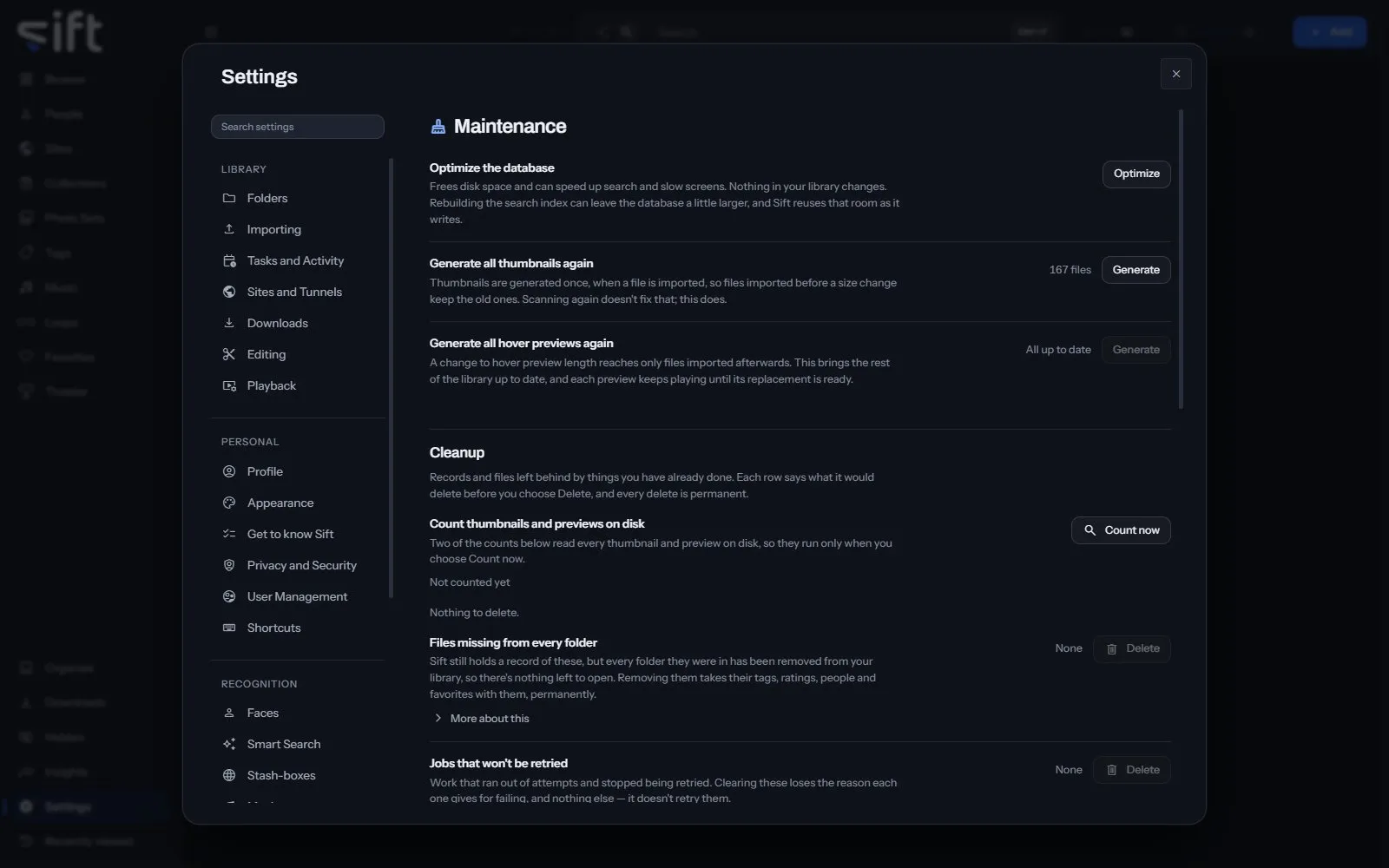
Maintenance is where you tidy Sift’s own data: the database, the thumbnails and previews, and the files Sift couldn’t import. To open it, go to Settings > Maintenance.
Come here to free disk space or to bring old thumbnails and previews up to date. Every row says what it would delete before you choose Delete, and every delete is permanent.
On this pane
Section titled “On this pane”The first rows have no heading. Then the pane draws two groups:
- Cleanup: records and files left behind by things you have already done, one row for each kind, each with Delete.
- Quarantined files: files Sift couldn’t import. Review them in Organize, and choose how many days to keep them.
Rows the pane draws by hand
Section titled “Rows the pane draws by hand”- Optimize the database: Optimize frees disk space and can speed up search and slow screens. Nothing in your library changes.
- Generate all thumbnails again: Generate makes every thumbnail again, so files imported before a size change get new ones.
- Generate all hover previews again: Generate brings every hover preview up to the length you chose.
- Count thumbnails and previews on disk: Count now reads every thumbnail and preview on disk for the counts below.
The Cleanup rows, one for each kind of leftover, each with Delete:
- Records of files whose folders were all removed from your library.
- Work that ran out of attempts and stopped being retried.
- Leftover thumbnails and previews: pictures made from files Sift doesn’t have now.
- Repackaged copies of videos: second copies kept so videos skip smoothly, offered while repair is off.
- Descriptions Smart Search kept of files that left your library.
- Descriptions from a model you switched away from.
- Face pictures from earlier scans: cropped faces no screen shows any more.
- Samples made while you chose how much to compress a file.
The duplicate settings listed under Every setting are drawn on Organize, on the Near duplicates card, beside the groups they decide.
Every setting
Section titled “Every setting”Delete quarantined files after
Section titled “Delete quarantined files after”Files Sift couldn’t import are kept in a folder of their own, so you can review them.
It’s off to begin with. Sift quarantines a file it can’t read, which is as often a half-finished download as a damaged file. Enter a number of days to delete quarantined files automatically, or leave it empty to keep every file until you delete it yourself.
- Path: Settings > Maintenance > Delete quarantined files after
- Default: Never
- Range: Never to 3650 days
- Who sets it: an admin, for everyone on this Sift
Delete quarantined files
Section titled “Delete quarantined files”Deletes quarantined files once they are older than the number of days you set.
- Path: Settings > Maintenance > Delete quarantined files
- Default: During quiet hours
- Choices: On a schedule, During quiet hours, Only when I press it
- Who sets it: an admin, for everyone on this Sift
How similar duplicates must be
Section titled “How similar duplicates must be”How close two files must be before Sift shows them as duplicates.
Each level is a count of how much of the fingerprint differs, which means something different for each kind of file. For a video, exact is 0, high is 2, medium is 4 and low is 6, where unrelated videos start to look alike. For a photograph the loosest level reaches 11, because two different pictures measure at least 26 apart. For a GIF it counts frames, and the loosest level lets 6 of its 30 frames differ.
- Path: Settings > Maintenance > How similar duplicates must be
- Default: Medium: very similar
- Choices: Exact: identical, High: almost identical, Medium: very similar, Low: similar
- Who sets it: an admin, for everyone on this Sift
Which copy to keep
Section titled “Which copy to keep”The copy Sift suggests keeping in each group of duplicates. Nothing is deleted until you confirm it.
Each rule is tried first, not alone. Two re-encodes of one clip often have the same size and resolution, so a tie goes to the next rule. Only a group that no rule can separate is left for you to decide. Higher resolution is the default because it best survives a re-encode: a re-compressed copy is smaller and newer but no better to look at.
- Path: Settings > Maintenance > Which copy to keep
- Default: Higher resolution
- Choices: Higher resolution, Larger file, Smaller file, Newer, Older
- Who sets it: an admin, for everyone on this Sift
Largest difference in length
Section titled “Largest difference in length”Two copies of one video run about the same length, so a bigger gap is usually a coincidence.
Leave it empty to ignore length. Videos Sift hasn’t measured yet are always shown.
- Path: Settings > Maintenance > Largest difference in length
- Default: 10 sec
- Range: No limit to 3600 sec
- Who sets it: an admin, for everyone on this Sift