Privacy and Security
Privacy and Security is where you choose how long you stay signed in, what Hidden hides, and when Sift locks. To open it, go to Settings > Privacy and Security.
Come here to set when Hidden locks, to clear your history, or to choose whether guests can save files. An admin also sees the settings that apply to every User.
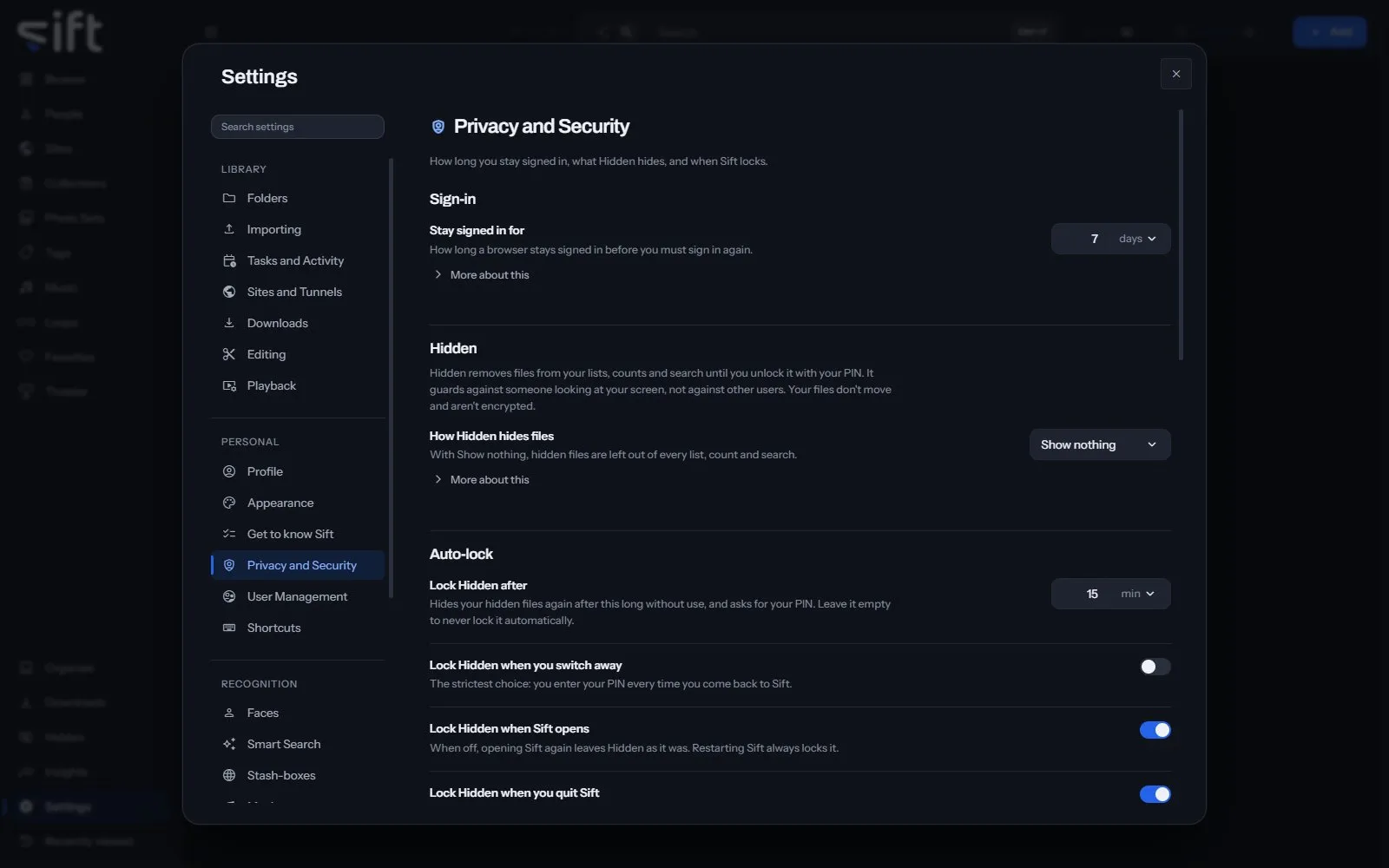
On this pane
Section titled “On this pane”The pane draws these groups, in this order:
- Sign-in: how long a browser stays signed in.
- Hidden: how Hidden hides your hidden files.
- Auto-lock: when Hidden locks again by itself.
- Sift lock: whether your PIN unlocks a locked Sift on your local network, and when all of Sift locks.
- Your history: whether Sift notes what you watch, open and search for.
- Save to device: whether guests can save a copy of a file to their own device.
- File locations: whether your profile folder’s name is blurred in a file’s location.
- Search history: how long Sift keeps the searches you run.
Rows the pane draws by hand
Section titled “Rows the pane draws by hand”- Clear your history: Clear deletes what you’ve watched, opened and searched for. Your files, ratings, tags and saved searches stay.
- Copies saved to a device: Open lists every copy saved to a device, in App History.
Every setting
Section titled “Every setting”Keep your history
Section titled “Keep your history”Sift notes what you watch, open and search for, so Insights can show how you use your library. It stays on the device Sift runs on and only you can see it.
Turn it off to pause: nothing new is noted until you turn it on again.
- Path: Settings > Privacy and Security > Keep your history
- Default: On
- Who sets it: each User, for themselves
Guests can save files
Section titled “Guests can save files”Guests can always watch what you share with them. When this is on, they can also save a copy to their own device.
This isn’t a lock. A file a guest plays is sent to them whole, so share only what you’re comfortable with a guest keeping.
- Path: Settings > Privacy and Security > Guests can save files
- Default: Off
- Who sets it: an admin, for everyone on this Sift
Hide my profile folder in paths
Section titled “Hide my profile folder in paths”Where Sift shows a file’s full location, the name of your profile folder is blurred. Your Windows sign-in name is often that folder’s name.
Only paths inside your profile folder on this device change, since that’s the only place the name appears. A file on another drive or on a network share, such as a NAS, is shown with its path as it is.
- Path: Settings > Privacy and Security > Hide my profile folder in paths
- Default: Off
- Who sets it: each User, for themselves
Keep search history for
Section titled “Keep search history for”Sift saves each search you run, so it can show how you use your library. Set a number of days to delete older searches.
Only you can see your search history, and Sift’s log never records a search. Leave it empty to keep it until you clear it yourself.
- Path: Settings > Privacy and Security > Keep search history for
- Default: Forever
- Range: Forever to 3650 days
- Who sets it: an admin, for everyone on this Sift
Delete old search history
Section titled “Delete old search history”Deletes searches from your search history once they are older than the limit set in Privacy.
- Path: Settings > Privacy and Security > Delete old search history
- Default: During quiet hours
- Choices: On a schedule, During quiet hours, Only when I press it
- Who sets it: an admin, for everyone on this Sift
Stay signed in for
Section titled “Stay signed in for”How long a browser stays signed in before you must sign in again.
Applies from your next sign-in. A browser already signed in isn’t signed out early.
- Path: Settings > Privacy and Security > Stay signed in for
- Default: 7 days
- Range: 1 to 365 days
- Who sets it: an admin, for everyone on this Sift
How Hidden hides files
Section titled “How Hidden hides files”With Show nothing, hidden files are left out of every list, count and search.
With Show a locked tile, you can see that something is there but not what it is. Either way, Sift never sends a hidden file until you unlock Hidden.
- Path: Settings > Privacy and Security > How Hidden hides files
- Default: Show nothing
- Choices: Show nothing, Show a locked tile
- Who sets it: each User, for themselves
Lock Hidden after
Section titled “Lock Hidden after”Hides your hidden files again after this long without use, and asks for your PIN. Leave it empty to never lock it automatically.
- Path: Settings > Privacy and Security > Lock Hidden after
- Default: 15 min
- Range: Never to 1440 min
- Who sets it: each User, for themselves
Lock Hidden when you switch away
Section titled “Lock Hidden when you switch away”The strictest choice: you enter your PIN every time you come back to Sift.
- Path: Settings > Privacy and Security > Lock Hidden when you switch away
- Default: Off
- Who sets it: each User, for themselves
Lock Hidden when Sift opens
Section titled “Lock Hidden when Sift opens”When off, opening Sift again leaves Hidden as it was. Restarting Sift always locks it.
- Path: Settings > Privacy and Security > Lock Hidden when Sift opens
- Default: On
- Who sets it: each User, for themselves
Lock Hidden when you quit Sift
Section titled “Lock Hidden when you quit Sift”The next person to open Sift on this device finds Hidden locked.
- Path: Settings > Privacy and Security > Lock Hidden when you quit Sift
- Default: On
- Who sets it: each User, for themselves
Unlock Sift with your PIN on LAN
Section titled “Unlock Sift with your PIN on LAN”When on, your PIN unlocks a locked Sift on your local network. Anywhere else, and when this is off, your password does.
Locking Sift keeps you signed in either way, and you can still sign out at any time. Through a tunnel or from outside your network, Sift always asks for your password.
- Path: Settings > Privacy and Security > Unlock Sift with your PIN on LAN
- Default: Off
- Who sets it: each User, for themselves
Lock Sift after
Section titled “Lock Sift after”Locks all of Sift after this long without use. Lock Hidden after only hides your hidden files.
Leave it empty to never lock Sift automatically.
- Path: Settings > Privacy and Security > Lock Sift after
- Default: Never
- Range: Never to 1440 min
- Who sets it: each User, for themselves