Tags
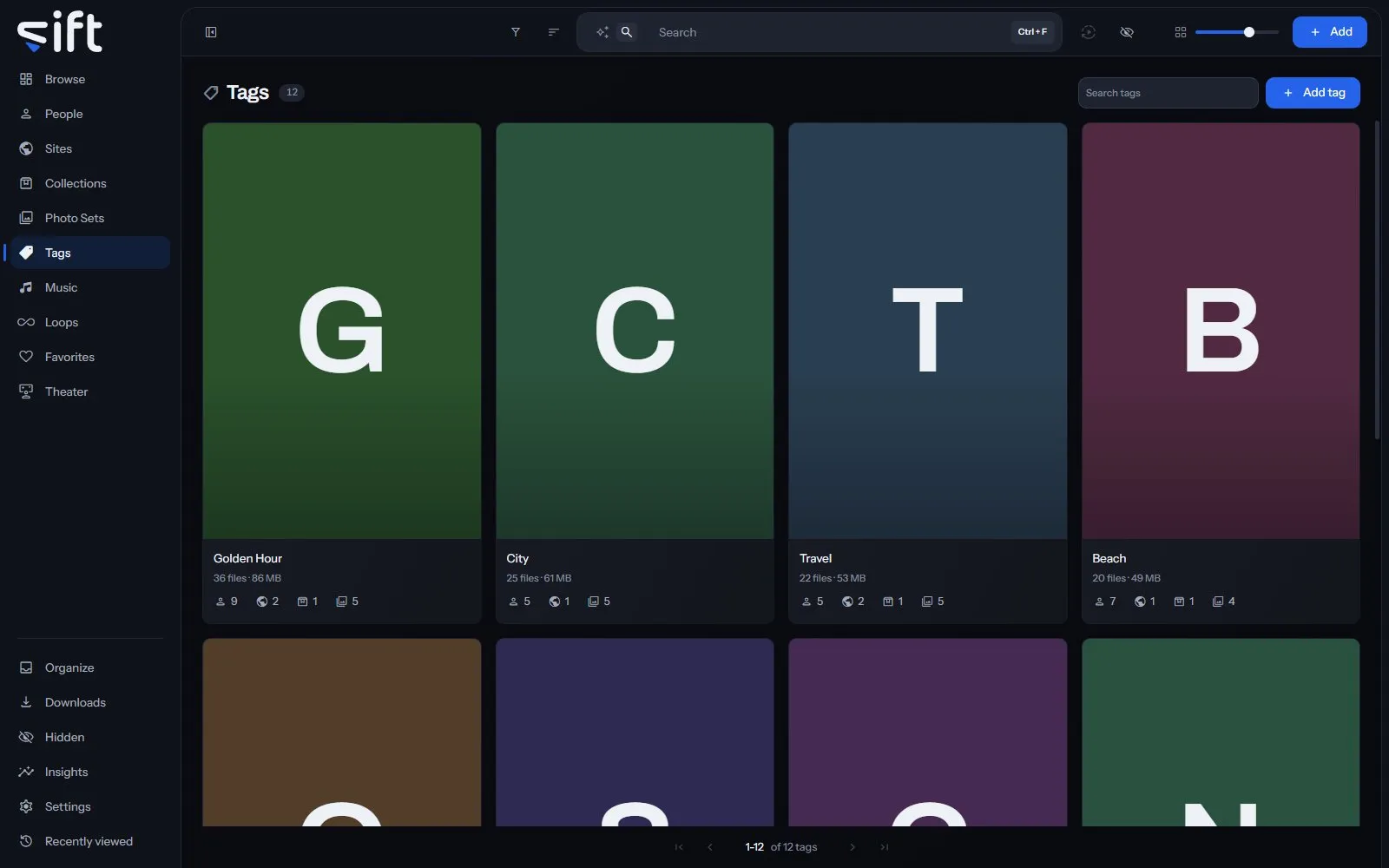
Tags lists every tag in your library, each with the files, people and Sites that carry it. To open it, click Tags in the sidebar.
A tag is a word you put on a file, a person, a Site, a collection or a Photo Set. Tags are shared by everyone who uses your library, so only an admin adds, renames or deletes one.
Put a tag on something
Section titled “Put a tag on something”On a file, choose Add to > Tag in its menu, then pick the tag. On a person’s or Site’s page, click Add tag under the name. On a wall of people, Sites, collections or Photo Sets, Add to > Tag tags every card you picked.
A stash-box can add tags too, when you enrich a file or a person from it. Settings > Stash-boxes > Create new tags decides whether it may make a tag you don’t have yet.
The Tags wall
Section titled “The Tags wall”Each card shows the tag’s cover, or its first letter on a color, with how many files carry it and how much room they take. The marks under it count the people, Sites, collections and Photo Sets that carry it. Search tags finds a tag by its name or any of its aliases. Add tag makes a tag with a name and, if you like, a picture.
Sort by offers Newest first, Oldest first, Recently edited, Name A-Z, Name Z-A, Most files, Fewest files, Favorites first and Highest rated. Four more orders add up every file under each one. Largest in total and Smallest in total go by size, and Longest in total and Shortest in total by length.
Filter opens these columns:
- Category: the group a tag belongs to.
- Part of: the broader tag a tag is filed under.
- Enriched by: which stash-box filled in the tag, or Not enriched.
- Has a cover photo: whether the tag has a cover.
- Created by: what made the tag: you, a stash-box or Sift.
- Sharing status: who the tag is shared with. Only an admin sees this column.
- Stash-box disagreements: tags whose stash-boxes give different answers. Only an admin sees this column.
A tag’s menu on the wall
Section titled “A tag’s menu on the wall”Right-click a card, or select several, to open the menu. A tag can’t carry a tag, so its menu has no Tag row:
- Add to favorites: adds the tag to your Favorites, or Remove from favorites takes it off.
- Pin or Unpin: keeps the tag at the top of the wall, or takes it off.
- Rating: gives the tag stars.
- Rename: gives the tag another name everywhere it’s used.
- Auto-enrich: asks the stash-boxes about the tag and keeps an exact match. Its rows choose All stash-boxes or one box.
- Enrich: shows what the stash-boxes answer, so you choose the match yourself.
- Don’t enrich or Allow enrichment: keeps the tag from being sent to any stash-box, or lets Sift ask about it again.
- Hide or Unhide: moves the tag into Hidden for you, or brings it back.
- Share: chooses the Users who see the tag.
- Visibility: shows who can reach the tag, and through what.
- Delete: takes the tag off every file carrying it. The files themselves aren’t touched.
Only an admin sees Rename, the three stash-box rows, Share, Visibility and Delete.
A tag’s page
Section titled “A tag’s page”The page shows every file that carries the tag. Its tabs each show one side of it: Files, Photo Sets, Loops, Tags, People, Sites, Collections, Music and History. Tags shows the tags filed under this one.
More opens the whole record, and Edit turns it into a form:
- Name: the tag’s name.
- Aliases: other words for the same thing. Searching for any of them finds this tag.
- Part of: the broader tag this one is filed under. Filtering by that tag finds this one too.
- Category: the group the tag belongs to.
- Description: what the tag means, so it’s used the same way every time.
- Stash-boxes: the stash-box entries the tag is linked to.
On the Files tab, a tile’s own row Use as the cover makes that file the tag’s cover.
Options at the top of the page holds Auto-enrich, Enrich, Don’t enrich and Delete, which do what they do on the wall.