Browse
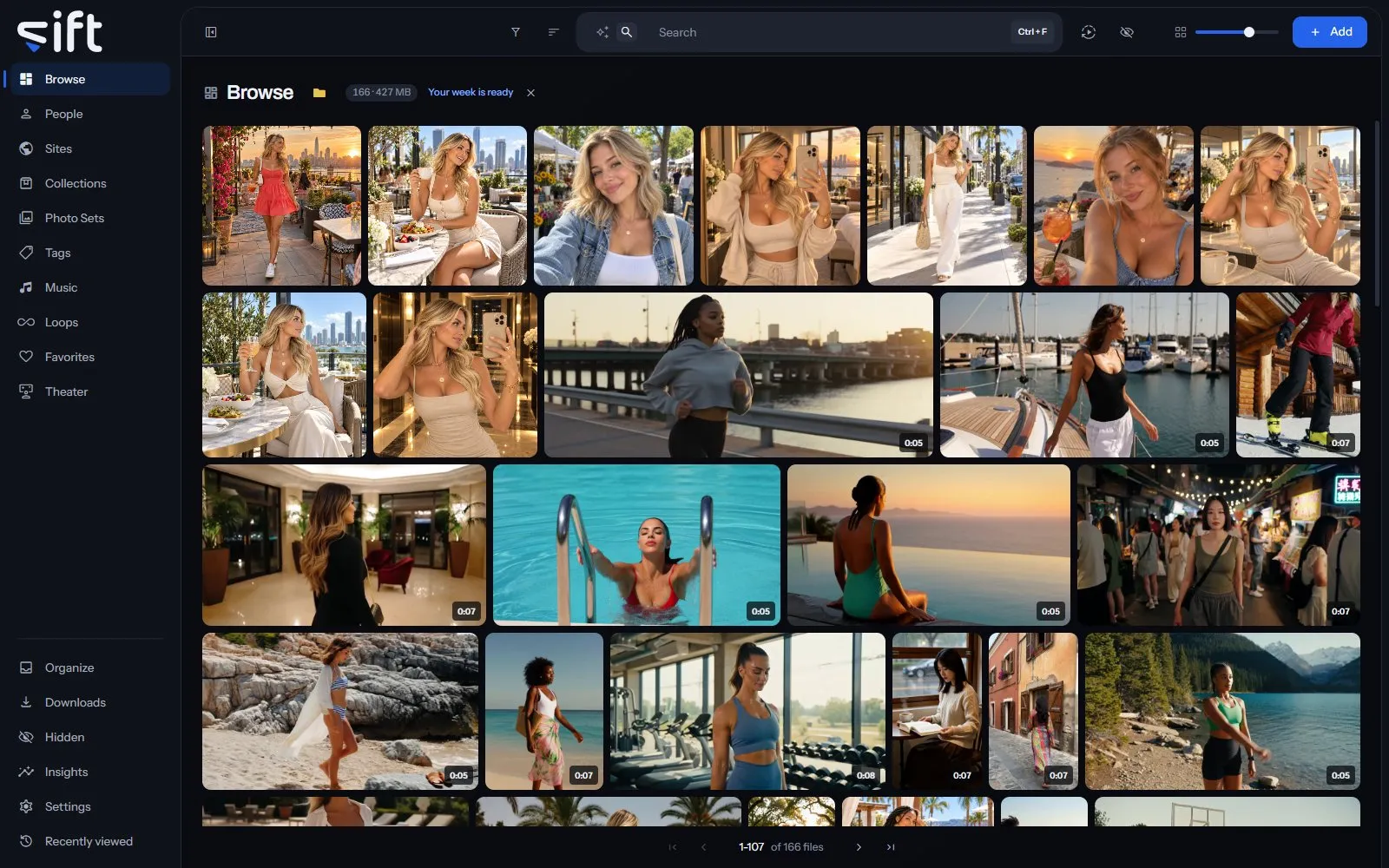
Browse shows every file in your library on one wall, newest first. To open it, click Browse in the sidebar.
Smart Search finds files by what they look like, using the SigLIP-2 model on your computer. Nothing about your files leaves your computer to search them.
The wall
Section titled “The wall”Each tile is a file. A video tile shows its length, and a star shows its rating. Point at a video to preview it. Click a tile to open the file over the wall; see The file page.
The bar at the top of every wall holds the same controls:
- Filter: opens the filter panel; see Filter the wall.
- Sort by: puts the wall in another order; see Sort the wall.
- Search: finds files by words; see Search and Smart Search. Press Ctrl+F to jump to it.
- Preview everything visible: plays every video tile on screen at the same time. Click it again to stop.
- Show hidden items: shows the files in Hidden on the wall, after you enter your PIN. Hide hidden items puts them away again.
- Tile size: the slider makes the tiles larger or smaller.
- Add: adds files, or a link to download.
Under the wall, the page controls move through the library a page at a time. Go to a position jumps to any page.
To select several files, hold the pointer down on a tile, then click the others. Ctrl and Shift work from the first click. A bar appears with what you can do to all of them, and Esc clears the selection.
Search and Smart Search
Section titled “Search and Smart Search”Type in Search and the wall shows the files that match your words. As you type, the list under the box offers the filters and the things in your library that match, and your recent searches. Clear beside Recent forgets them all, and the cross on one row forgets that one.
A search can name a field, so tags:Beach media:image finds the photos tagged Beach. The chips under the bar show each part of the search, and you can click a chip to change it.
Click the sparkle beside the box to switch to Smart Search: Search by what things look like. Then a red car at night finds files that look like that, with or without those words in their names. Click it again for Search for the words.
Smart Search needs its model, and Sift describes each file first. Turn it on in Settings > Smart Search > Search using natural language and similarity, and choose the model in Settings > Smart Search > Description models.
Filter the wall
Section titled “Filter the wall”Filter opens a panel of columns, each a list of values with how many files have each one. Select a value to filter the wall by it. The arrows at the panel’s sides show more columns, and each column’s heading chooses which column it shows:
- Media: photos, videos or GIFs.
- Tags: the tags on a file.
- People: the people in a file.
- Folder: the folder a file is in.
- Rating: the stars a file has.
- Favorites: whether you added the file to your Favorites.
- O count: how many times you pressed the O counter on a file.
- View status: whether you have watched or opened the file.
- Loops: whether the file has a Loop marked in it.
- Resolution: a video’s or photo’s size, in bands.
- Duration: a video’s length, in bands.
- File size: how much room a file takes, in bands.
- Sites: the Site a file came from.
- Collections: the collections a file is in.
- Photo Sets: the Photo Set a picture is in.
- Music: the song a file carries.
- File type: the file’s format, such as MP4 or JPEG.
- Video codec: how a video’s picture is stored.
- Audio codec: how a file’s sound is stored.
- Orientation: landscape, portrait or square.
- Enriched by: what filled in a file without you, such as a stash-box, a face, a folder name or a watermark.
- Created by: what made the file, such as a download, a swap, a library folder or a file Sift compressed or edited.
- Added: when the file was imported, as a range on a calendar.
- Sharing status: who the file is shared with. Only an admin sees this column.
- Asked a stash-box: when a stash-box was last asked about the file, or that it’s kept local.
- Left out: what Sift couldn’t make for the file, such as its thumbnail, hover preview or facial fingerprints.
- Released: the file’s release date.
- Network: the network the file’s Site belongs to.
- Gender, Hair color, Eye color, Ethnicity, Nationality, Breast type, Height and Age: asked of the people in the file.
Each value you choose appears as a chip on the bar. Click a chip to choose how it matches: any of, all of, none of, has any or has none. Click its cross to remove it, or Clear all to remove every chip.
The Tags, People, Sites, Collections, Photo Sets and Music columns each start with two rows, such as Has tags and No tags. Click one to see only the files that have any, or none. Click its chip to swap one for the other. On the People, Sites, Collections and Photo Sets pages, the Tags column starts the same way, with Has tags and No tags.
Save a filter
Section titled “Save a filter”A saved filter keeps what is filtering the wall under a name, so one click puts it back:
- Filter the wall the way you want it.
- Click Add to saved filters at the end of the filters bar.
- Enter a name and click Save.
Your saved filters are at the foot of the filter panel. Click one to apply it. Its menu holds:
- Edit: changes what it keeps, using the columns above it. Click Save or Cancel when you’re done.
- Rename: gives it another name.
- Update from current filters: keeps what is filtering the wall now under the same name.
- Delete: deletes the saved filter. Your files don’t change.
When you delete the last thing a saved filter names and it holds nothing else, Sift deletes the saved filter too. This works for a tag, person, Site, collection, Photo Set, song or folder, and App History says so. A saved filter that also holds something else keeps the deleted one, and its chip says it doesn’t exist.
Sort the wall
Section titled “Sort the wall”Sort by offers these orders:
- Closest match: the files that best match your search words first. It’s offered while you search.
- Similarity: the files closest to a Smart Search or to one file first. It’s unavailable until you run a Smart Search or choose Similar to this on a file.
- Newest first and Oldest first: by when a file was imported into your library.
- Recently edited: the files whose name, fields, cover, tags or stars changed most recently first.
- Name A-Z and Name Z-A: by name.
- Longest and Shortest: by a video’s length.
- Largest file and Smallest file: by how much room a file takes.
- Recently viewed and Most viewed: by when, or how often, you opened a file.
- Highest O count: the files you pressed the O counter on most first.
- Favorites first: the files in your Favorites first, newest first among them, then the rest.
- Highest rated: the files with the most stars first, and the unrated last.
- Random: a shuffled order that holds while you page. Shuffle again draws a new one.
Sift keeps the order you choose for every wall of files. On Favorites, the menu adds Recently favorited and Oldest favorited, by when you added each file there.
Browse by folder
Section titled “Browse by folder”Click the folder beside the Browse heading to see your library as folders instead of tiles. Inside a folder, the wall shows the files in it, and the folders inside it stand above them. Click the folder again, Back to tiles, to return.
Beside the folders, three buttons choose how they’re shown: Folders as a list, Folders in columns and Folders as tiles. An admin also sees New folder, which makes a folder inside the one you’re in.
Right-click a folder to open its menu:
- Move to…: moves the folder into another folder on the disk.
- Rename: renames the folder on the disk.
- Rename files in this folder: renames every file in it to a pattern you choose.
- Add to: a Person or Site names the folder as that person or Site. The other rows add every file under it to a Collection, Photo Set, tag or song.
- Don’t enrich or Allow enrichment: keeps Sift from looking up any file under the folder outside your computer, or lets it look them up again.
- Don’t swap or Allow swapping: keeps every file under the folder out of a swap, or lets Sift offer them again.
- Hide or Unhide: moves the folder into Hidden for you, or brings it back.
- Share: chooses the Users who see the folder.
- Visibility: shows who can reach the folder, and through what.
- Properties: what Sift has recorded about the folder.
- Delete: deletes the folder and the files in it from your disk, after you confirm. There’s no bin and no way back.
A folder you added in Settings > Folders has no Move to, Rename or Delete here. Right-click the empty space of a folder for New folder, Properties and Visibility.
A file’s menu
Section titled “A file’s menu”Right-click a tile, or click the three dots on the file page, to open a file’s menu. Some rows appear only on one file, and some only for an admin:
- Similar to this: shows the files that look most like this one, closest first.
- Add to: adds the file to a Person, Site, Collection, Photo Set, Tag or Song, or to your Favorites.
- Pin or Unpin: keeps the file at the top of the wall it’s pinned on, or takes it off.
- Rating: gives the file stars.
- Copy link: copies the file’s address in Sift.
- Save to device: saves a copy of the file to the device you’re using.
- Move: moves the file to another folder on the disk.
- Rename: renames the file on the disk.
- Trim (a video) or Modify (a photo): opens the editor, which saves the result as a new file.
- Create GIF: makes a GIF from part of a video.
- Compress: makes a smaller copy of a video, or of several files.
- Run task: runs Scan now, Generate now or Identify now on just this file.
- Auto-enrich: asks the stash-boxes about the file and keeps an exact match. Its rows choose All stash-boxes or one box, such as StashDB, PMVStash or FansDB. AcoustID names the file’s song, and Ask AcoustID again asks about a song it didn’t know.
- Enrich: shows what the stash-boxes answer, so you choose the match yourself.
- Don’t enrich or Allow enrichment: keeps Sift from looking up the file outside your computer, or lets it look it up again.
- Don’t swap or Allow swapping: keeps the file out of a swap, or lets Sift offer it again.
- Share: chooses the Users who see the file.
- Visibility: shows who can reach the file, and through what.
- Hide or Unhide: moves the file into Hidden for you, or brings it back. A locked file shows Unlock instead.
- Remove: takes the file out of Sift. Choose Remove from Sift to keep it on your disk, or Delete from disk to delete it there too. A picture inside a ZIP file can’t be deleted from disk, because Sift doesn’t change ZIP files. Remove from Sift keeps it out of later scans, and Try again under Skipped brings it back.
Move, Rename, Trim, Modify, Create GIF and Compress need a folder Sift can write in.
The file page
Section titled “The file page”Click a tile to open the file over the wall. The address is the file’s own, so you can send it or open it again later.
Under the picture or video are the file’s name, the heart, the stars, the O counter and Add to. More for this file opens the file’s menu. Further down:
- Enrichment: the people, Sites, Collections, Photo Sets, tags and song on the file.
- Who is in this: each face Sift found, with the person it belongs to, or Not named yet.
- Similar to this: a strip of the files that look most like this one.
- Same music: the files that share this file’s song. Click its heading to see them all on the wall.
- File info: three tabs. About holds the file’s location and its fields, Media its size, format and codecs, and History what happened to it.
The player
Section titled “The player”A video plays on the file page. Its bar has the scrub line along the top, with the time so far at its start and the video’s length at its end. At the start of the bar, under it, are the repeat control, Previous, Play, Next and Shuffle. The sound and the ways to a smaller player are at the bar’s end, and More controls opens the rest. A control with nothing to do is dimmed and says why when you point at it. Every control says its name when you point at it:
- Play and Pause: start and stop the video. Press Space.
- Previous and Next: open the file before or after this one on the wall.
- Shuffle: makes Previous and Next walk the wall in a random order. Press S.
- Play through, Repeat this or Stop at the end: what happens when the video ends. Press R.
- Mute and Unmute: turn the sound off or on. Press M.
- Full screen and Leave full screen: fill the screen with the video, or return. Press F.
- Open mini player: keeps the video playing in a small panel while you move around Sift. Press I.
- Open audio player: keeps only the sound playing, in a strip along the foot of the window. Press A.
- Back to full size: opens the file page again from the mini player or the audio player.
- Close: stops the mini player or the audio player.
- Randomize: opens a random file from the wall.
- Clip: keeps the last few seconds you watched as a new file. Choose how many seconds.
- Screenshot: saves a picture of This frame, The player or The whole window.
- Quality: chooses the size the video plays at, where the file has more than one.
- Stats for nerds: shows the video’s technical details while it plays.
- Save as Loop: saves the stretch you marked with L as a Loop.
The mini player
Section titled “The mini player”The mini player keeps a video playing in a corner while you browse, search or open another screen. Drag it by its top edge, and resize it from its edges. Back to full size returns to the file page, and Close stops it.
The audio player keeps only the sound playing, in a bar at the foot of the page. It has the same shape as the file page’s bar, with the scrub line and its two times along the top. Under it, the repeat control, Previous, Play, Next and Shuffle are at the start. The video’s small picture is in the middle. The sound, Open mini player, Back to full size and Close are at the end. On a phone it stands above the tabs with the picture, the name, Play, Back to full size and Close.
Settings > Playback > Remember where you left off decides whether a video you open again starts where you stopped.